
Released by Jens Kafitz, 2023 - www.MariExtensionPack.org | Join us on  ,
 or

RELEASED ON: August 1st, 2023
LAST PATCH ON: August 21, 2023
MINIMUM REQUIREMENT (for Mari 6.x): MARI 6.0v1
MINIMUM REQUIREMENT (for Mari 7.x): MARI 7.0v1
|
|
Mari 4.x and 5.x are supported by older Extension Pack versions (5R9) which are included in your purchase
|
ICONLEGEND
 New Feature
 Feature Update
 Welcome to Mari Extension Pack 6, the start of the next chapter in Extension Pack's 10 year history.
Just as with the previous Series-5, this R1-Release is just the first of many and you can expect continued support and free upgrades for Series-6 n the coming years.
With this first release of the Series-6, Extension Pack not only restores support for Mari 6 and adding support for the End of 2023 Release of Mari 7, it also introduces a whole slew of new features.
If you wish to use Extension Pack with a previous Mari Version (4 or 5), of course you also have access to older, compatible versions with your purchase
As usual the new Series comes with a set of Video Tutorials for the new Features:
Click on a feature for more information
Mari Extension Pack 6 R1 now is compatible with Mari 6.x.
Extension Pack 6 for Mari 6 has a minimum requirement of Mari 6.0v1.
It utilizes Python 3.9.10
Mari Extension Pack 6 R1 now is also already compatible with Mari 7.x via a separate install.
Extension Pack 6 for Mari 7 has a minimum requirement of Mari 7.0v1.
It utilizes Python 3.10.10.
If you wish to use previous Mari Versions with Extension Pack (e.g. Mari 4.x or Mari 5.x), then you can use
Mari Extension Pack 5 R9, which is also available with your purchase.

The new Nodegraph Quickmark System allows you to quickly bookmark any Graph Location and rapidly jump in between them.
It works completely independent of Graph Hierarchy Level or Object you are on .. Extension Pack will manage selecting objects
or opening Subgraphs for you.
Your Quickmarks can be found at the top-right corner of the Nodegraph Palette

To use the buttons to control Quickmarks
 Ctrl + Click on a button to set a quickmark. The button will turn blue indicating a quickmark is set
Simply click on the button to jump to the saved location
To clear a Button assignment, Shift-click on the button
To use the hotkeys to control Quickmarks
Press Alt+Ctrl+<Number> to assign a Quickmark while your cursor is in the Nodegraph
Press Ctrl+<Number> to jump to a saved location
Your hotkeys are freely customizable via the Mari Hotkey Editor and the tooltips will help you
learn them !
To use the menu to control Quickmarks
Options to set and execute Quickmarks are also available in the Nodegraph Right Mouse Click Menu, in the Bookmark Submenu
To use a hotbox to control Quickmarks
A hotbox is available to set and execute Quickmarks. To use the Hotbox, assign a Hotkey via the Hotkey Manager as it does not
have one pre-assigned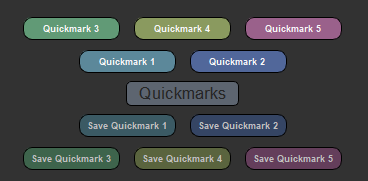

Extension Pack 6 introduces custom Node Styles.
Easily colorize and reshape nodes using ..
the new Nodegraph Style Hotbox available on the 'Z' Hotkey
the Right Mouse Button / Edit / Node Style Menu
Works with all Nodes and Backdrops except Paint Nodes, Channel Nodes and Single Bake Points
As it is a Hotbox, colors can be freely and relatively easily changed via the Hotbox Manager
|
|
Currently Extension Pack does not support changing the Node color or Shape of Nodes containing their own Image Sequence. |
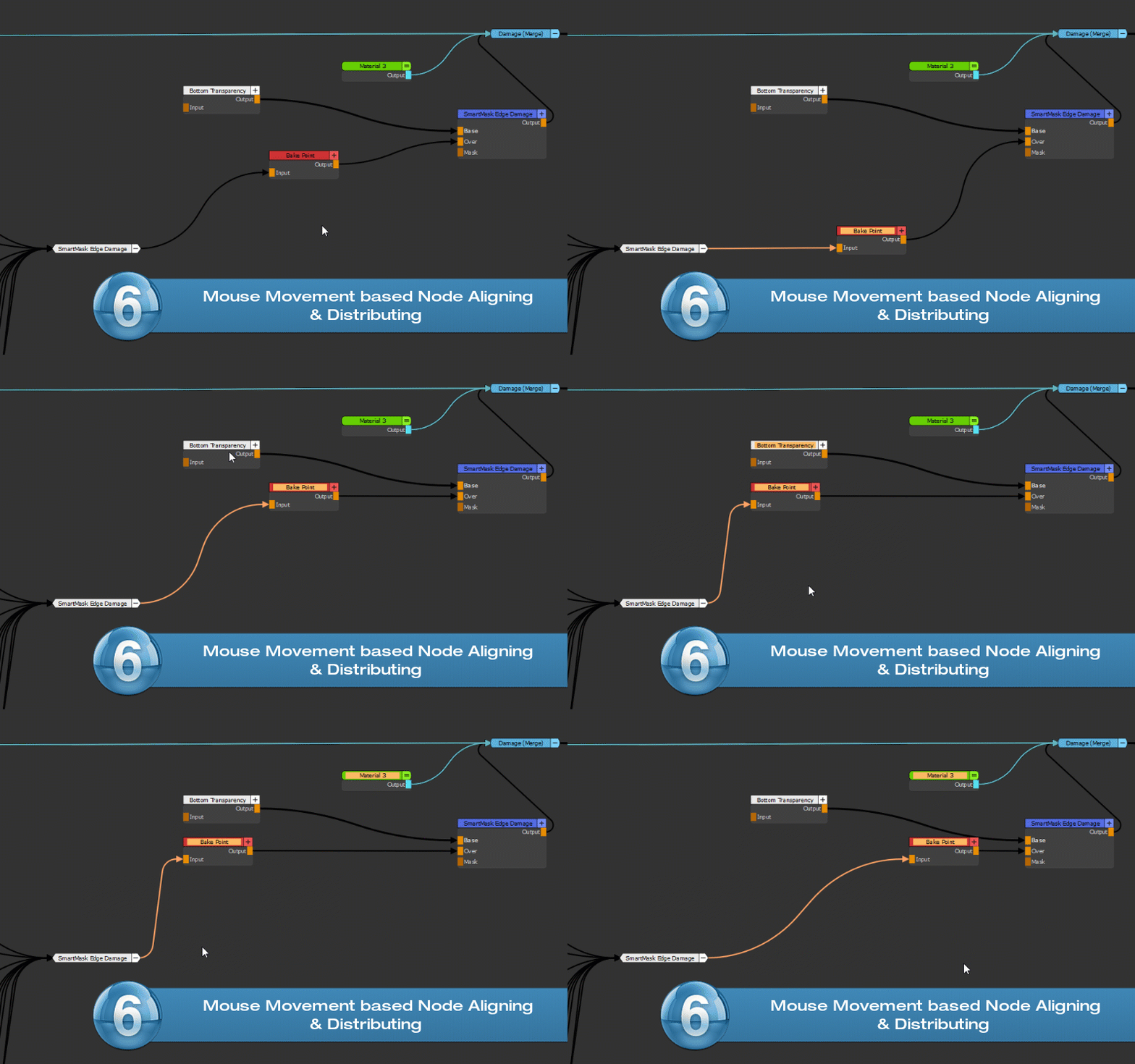
Extension Pack 6 comes with new and intuitive ways to align & distribute nodes - all with a single hotkey and
mouse direction action.
Extension Pack's own Alignment Features are now also available by pressing Hotkey Q and moving your mouse in a direction.

If you press the Modifier Key ALT + Q the Alignment runs Node Stream aware.

When pressing Hotkey Shift + Q the behavior changes to utilize newly implemented Distribution and Layout Features
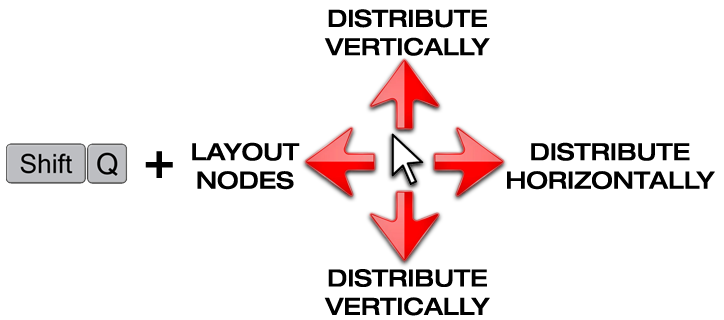
These Mouse Direction based actions are based on an invisible Hotbox, that you can customize in the Hotbox Manager
See all the Quick Alignment and Distribution Features in Action here:
All Alignment & Distribution Features have been placed into a new "Layout" Submenu in the Nodegraph Right Mouse Click Menu
The new "Distribute Nodes Vertically" will distribute nodes between the highest and lowest positioned nodes
The new "Distribute Nodes Horizontally" will distribute nodes between the furthest left and furthest right positioned nodes
The new "Layout Nodes" (not to be confused with Mari's own "Autoplace") will
layout all upstream nodes if one node is selected
layout selected nodes based on downstream nodes if multiples are selected
layout all nodes outside of backdrops if no node is selected
as a bonus feature, other than Mari's Autoplace, Extension Pack's Layout Nodes will not modify backdrop sizes.
The logic of the previously introduced Align Nodes has been refined:
If a single node is selected, using Align Top or Bottom will now step through all possible aligned positions of both input and output nodes
Align Top and Align Bottom now are aware of the node streams they perform on, meaning each node stream will align separately to its most top/bottom node position.
The non-node-stream aware options are still available as separate options
No matter if you are handing a Mari Project off to another artist or you just like to quickly identify parts of your Graphs, the new Image Annotation system
makes documenting your nodegraph easy.

Nodegraphs now support embedded images via the Image Annotation System
Use Image Note from View to capture your viewport and crop the image to your liking
Use Image Note from File to import arbitrary images from disc
Use Node Thumbnail from View to quickly generate Node Thumbnails for selected nodes.
Node thumbnails retain a permanent link to the original node, meaning if you regenerate
a thumbnail the original Image Annotation updates.
|
|
Tip: Give this a try in combination with the new "Select by Type .. / Paint Nodes" to quickly (re)generate thumbnails |
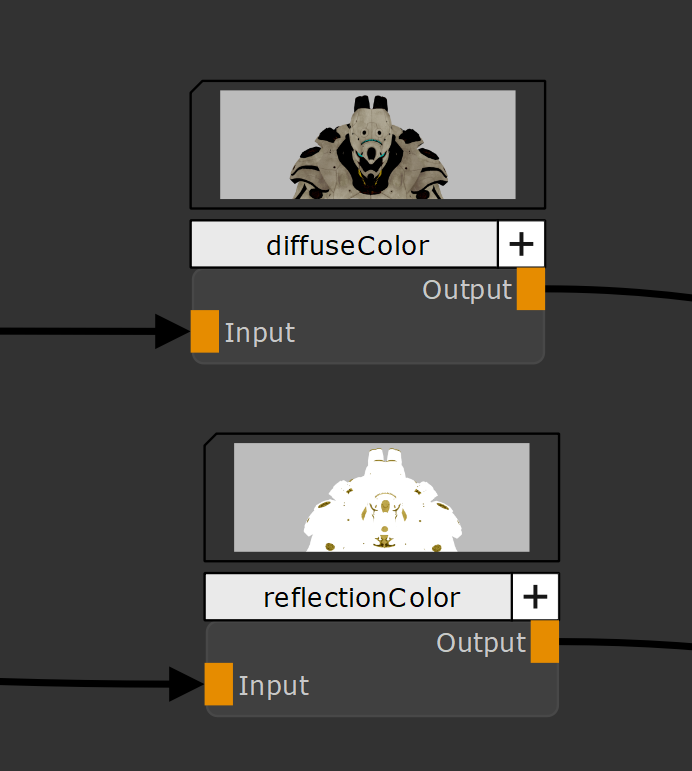
Use Image Note from Library to use one of the many Vector Icons shipping with Extension Pack ... or add your own.
Rescale Image Notes via their Node properties

See all the Image Annotation Features in Action here:

How many times a day do you need to change the Background color on a newly created Paint Node to either be black, white, grey or transparent ?
A new Paint Node Background Presets Hotbox has been added, available under the default hotkey SHIFT+P.
Choosing a preset from the Hotbox will automatically pre-configure the New Paint Node Dialog to open with your chosen settings

As it is a Hotbox, users can easily change, add and rearrange items using the Hotbox Manager

New convenience options have been added, to cycle through Node Types in your Material or Node Stream.
A Material Stream is defined as being a chain feeding into a Material or Shader Port.
All Functions have been placed inside a new "Navigate" Submenu alongside the Subgraph Navigation Methods

Next / Previous Paint Node in Stream
CTRL + ] , CTRL + [
Will cycle backwards / forwards through the Paint Nodes in your Node Stream.
Nodes will be selected and focused.
Next / Previous Bake Point in Stream
SHIFT + } , SHIFT + {
Will cycle backwards / forwards through the Bake Point & MultiChannel Bake Points in your Node Stream.
Nodes will be selected and focused.
Next / Previous Similar in Stream
ALT + ] , ALT + [
Your current selection when executing the option will server as the filter for this cycle Action.
E.g. if a Merge Node is selected when executing it, it will cycle backwards / forwards through the other Merge Nodes in your Node Stream.
Nodes will be selected and focused.
A new quick selection method has been added to the Nodegraph that is to become a favourite in reducing strain on your hands: Select closest node to cursor

Pressing the Hotkey E in the Nodegraph will select the closest Node to your cursor and view its node properties
Pressing the Hotkey Shift + E in the Nodegraph will select the closest Node to your cursor, view its node properties and attach a viewer
Pressing Hotkey Ctrl + E in the Nodegraph will select the closest Node without viewing its node properties
New Quick Connect and Disconnect Options have been added
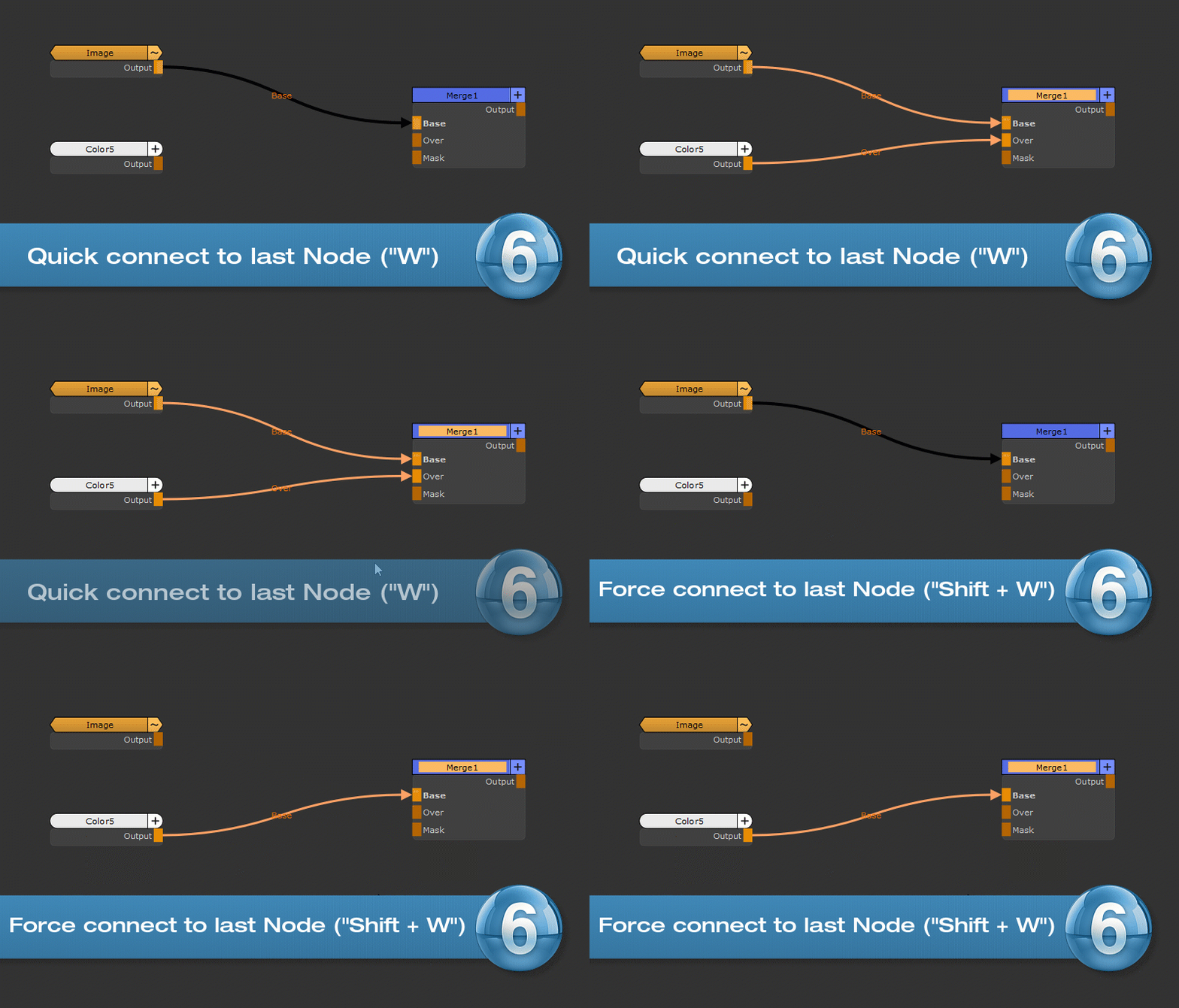
Pressing the Hotkey W will quick connect the previously selected node(s) to the current selection, while leaving existing connections intact.
Pressing "W" repeatedly will cycle the connection through open ports.
Pressing the Hotkey Shift + W will quick connect the previously selected node(s) to the current selection, overwriting existing connections
Pressing "Shift + W" repeatedly will cycle the connection through ports, overwriting any previously made connection is goes over.
|
|
Tip: Give this a try in combination with the new "Select Closest to Cursor" |
New convenience actions have been added to disconnect all inputs or outputs of a node, e.g. press Hotkey Ctrl+Alt+X to disconnect all inputs.
All new options have been added to a "Connection" Submenu in the Nodegraph Right Mouse Click Menu.
Mari's native "Extract Node" option has been moved into this submenu

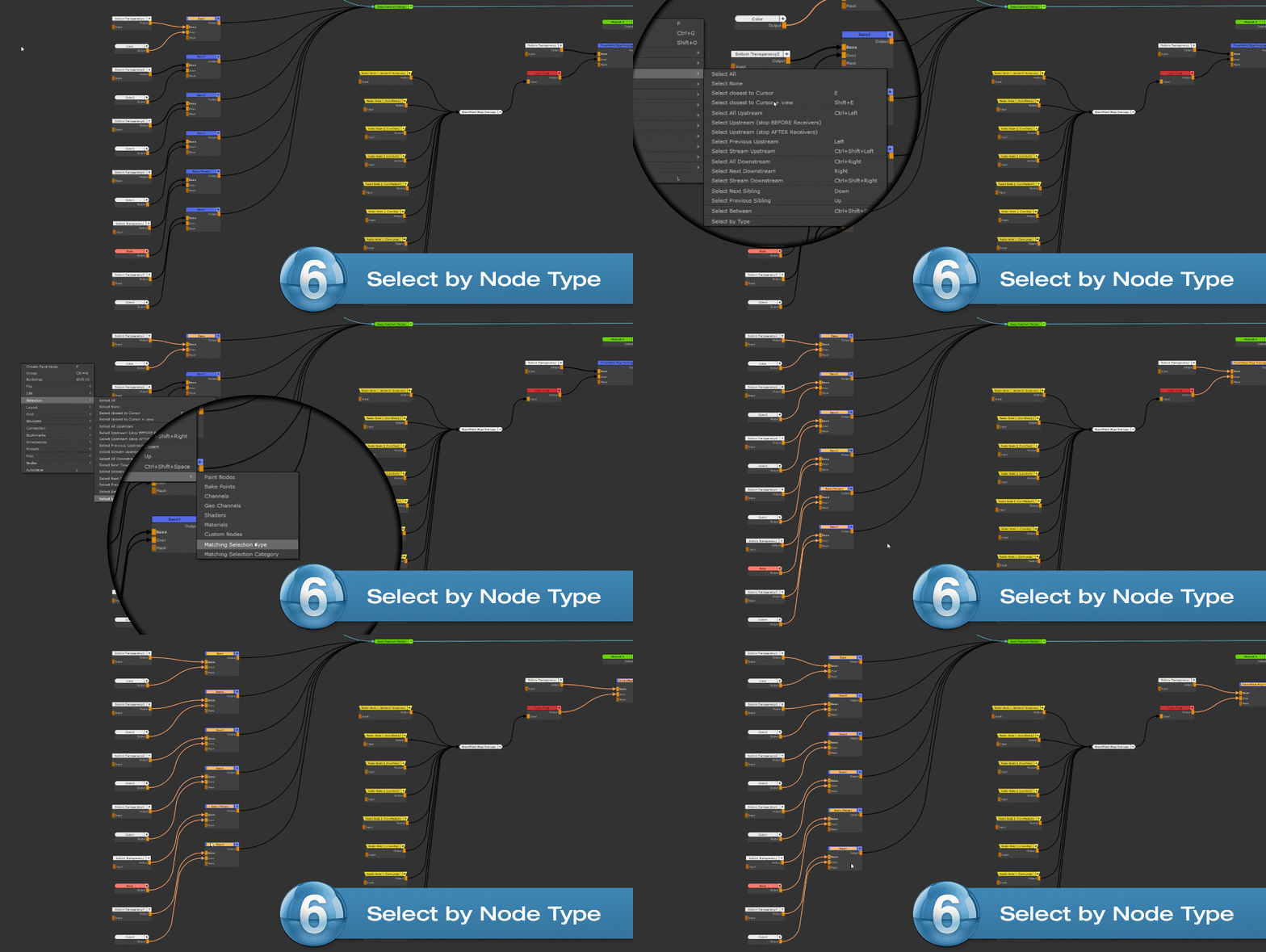
A range of new "Select by Type ... " options have been added to the Nodegraph Selection Options. This allows you to quickly select nodes of a certain type, for example
all paint nodes. This also works great with the new Thumbnail option e.g to quickly generate preview thumbnails for all paint nodes in a graph.
The previously existing 'Select Custom Nodes" has been moved into the "Select by Type" Submenu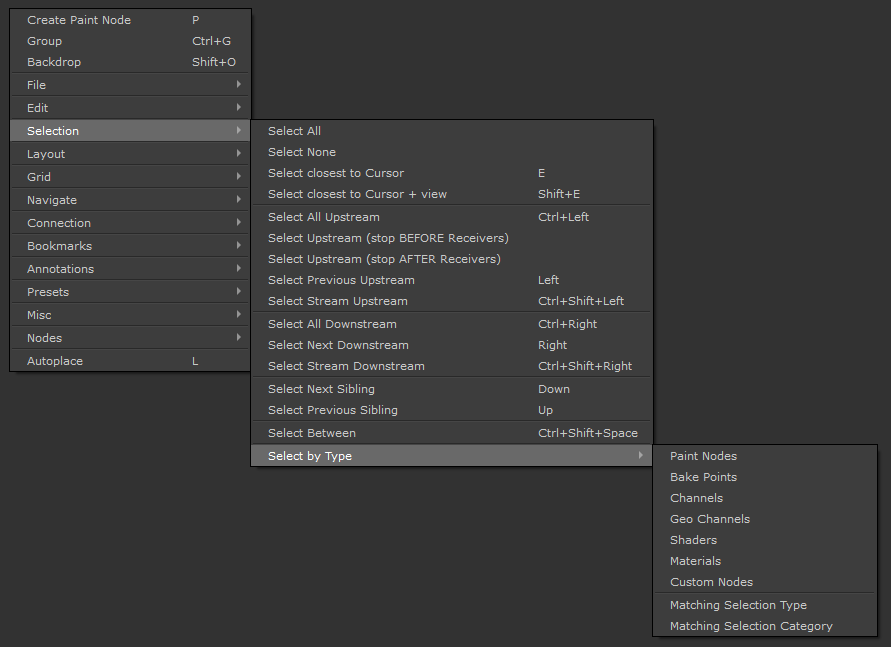
Entering and leaving a Subgraph (e.g. a Material or Group Node) is now possible via Shortcuts.
To enter a Subgraph press Hotkey I
To leave a Subgraph press Hotkey U
To jump to the Root Nodegraph of the current Geo, press Hotkey HOME
To cycle through open Graphs, press Hotkey CTRL+Tab
All Functions have been placed inside a new "Navigate" Submenu alongside the new Node Jump Actions


You can now repeat the last Node Creation Command.
This will create a new instance of the last created Node Type (e.g. Merge, Color, Mix etc.)
For convenience a "Repeat Last" Button has been placed in the Node Creation Hotbox (Hotkey "C")


The 3D Scan Projection Wizard is designed to speed up the initial process of creating projections onto Models derived from 3D Scans.
It will automate the following tasks for you
•Setup Cameras (Projectors) with matching Images, correct Dimensions etc. in the Mari Projectors Palette
•Create a non-destructive and live Projection Blend Setup as a Graph Group that can be added to your Nodegraph or Layerstack
You will still be required to do cleanup and proper blending/masking but the initial setup with this tool is easy and fast.

Extension Pack 6 introduces a new Layout Management System. No more need to manually browse and load a previously exported Layout File.
Layouts can now directly be stored in a way that they are available to choose from in the UI. Independent of Mari Versions.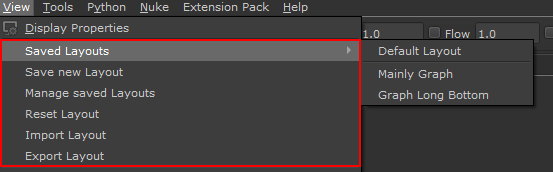
"Save new Layout" will store a Layout inside your Mari User Preferences Folder.
Saved Layouts are available under the "Saved Layouts" Submenu
With the "Manage saved Layouts" Dialog you can edit, rename, delete and export your Layouts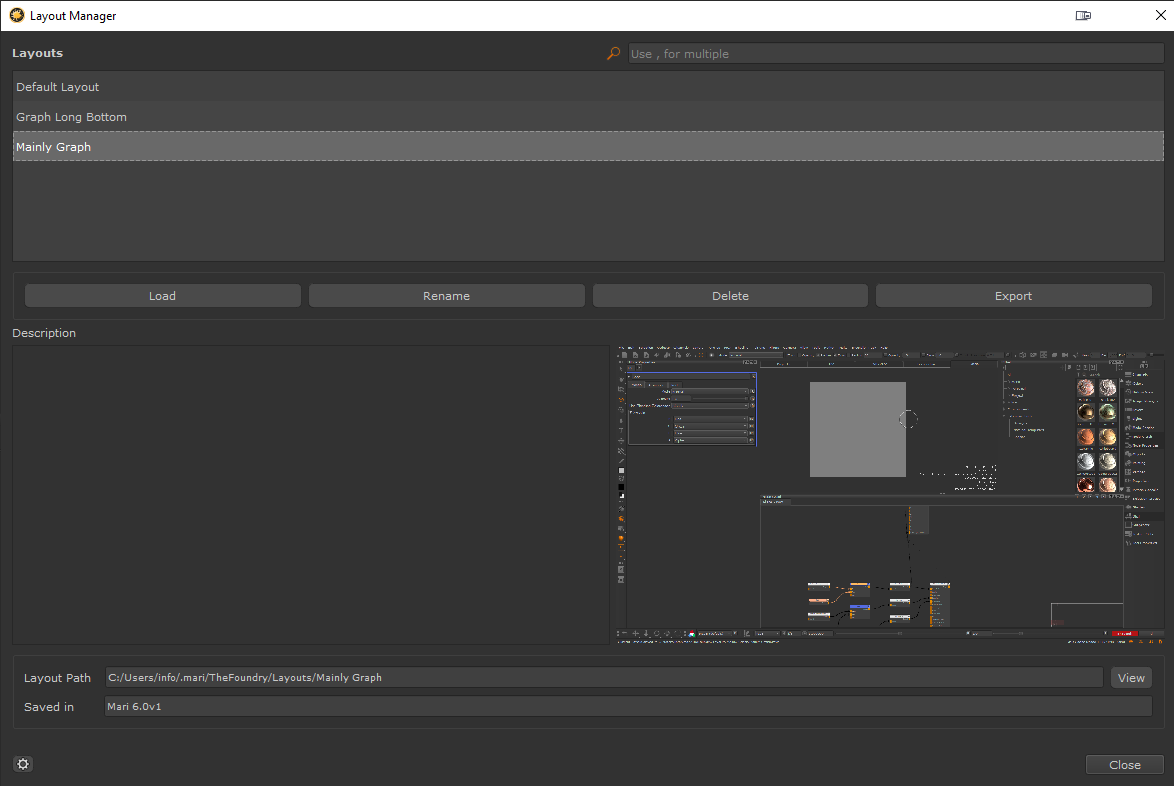
Mari's native options have been renamed
"Save Layout" is now called "Export Layout"
"Load Layout" is now called "Import Layout"
"Default Layout" is now called "Reset Layout"
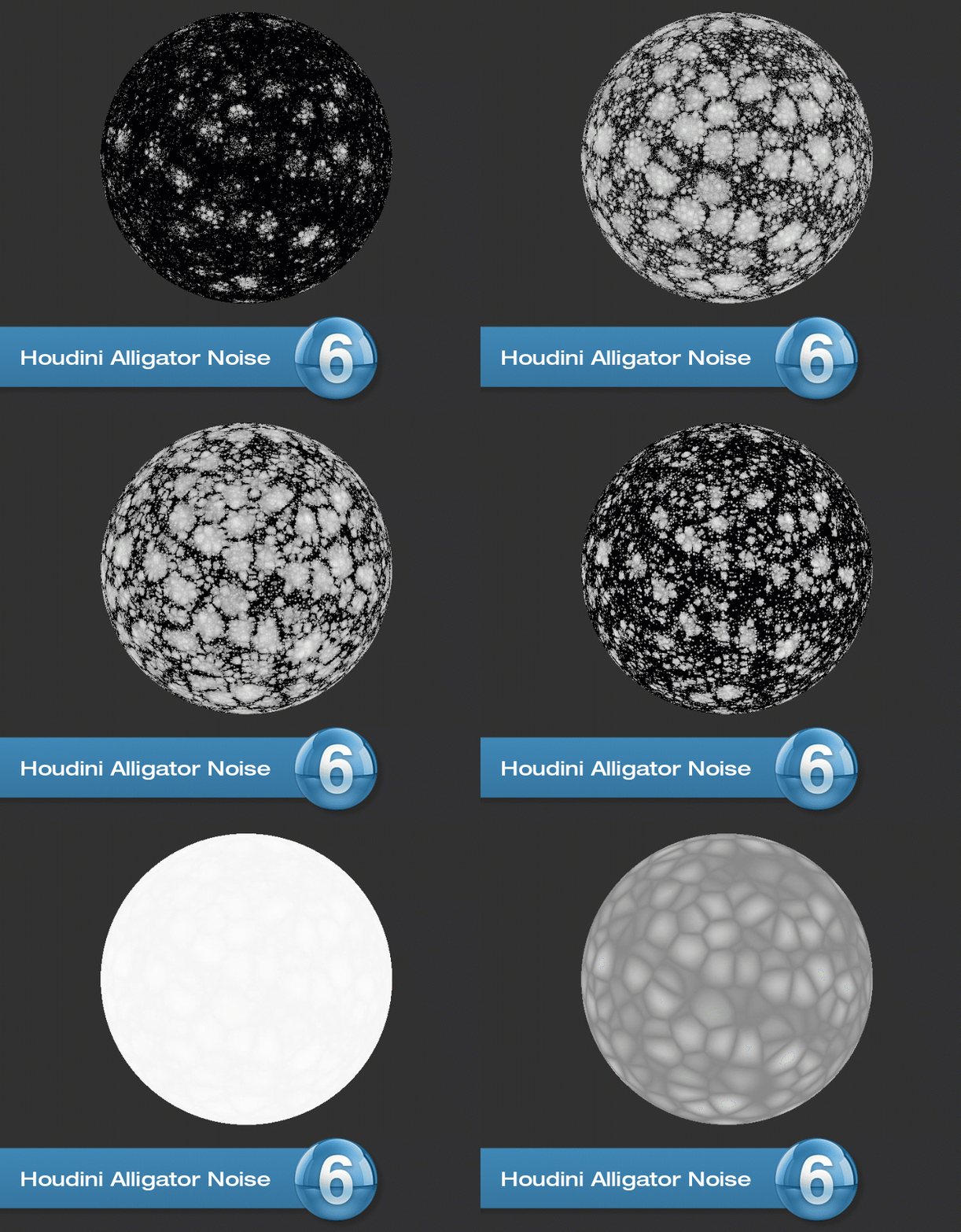
SideFX Houdini's Fractal Alligator Noise is now available inside MARI as a new Noise Node
The Alligator Noise is now also available inside the Noise Selector Node and Smart Masks
New Examples have been added to the Procedural Tab of the Preset Browser under the "Alligator Noise' Group
One of the most requested Features for Nodes now is included in Mari Extension Pack 6.
Mask Ports on Adjustment Nodes .. both native Mari ones as well as Extension Pack Adjustment Nodes.
The Mask Ports remove the need to create separate Mix or Merge Nodes to mask out an Adjustment Effect.
Mask Ports skip the extra overhead of merge nodes
Mask Ports and Mask Intensity Adjustment Sliders can now be found on almost all Adjustment Nodes.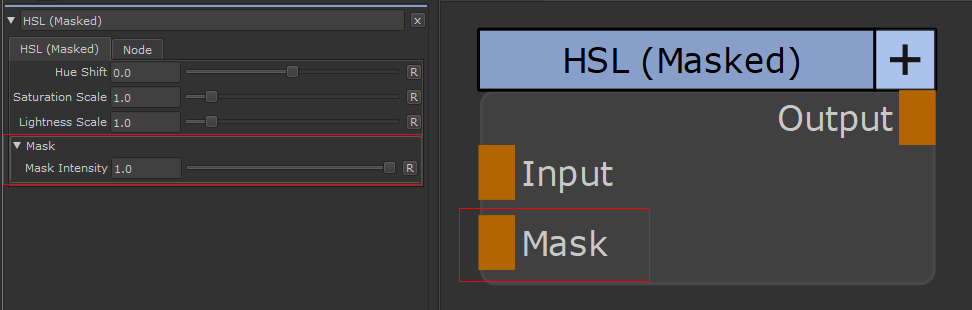
The following native Mari Adjustments can now be found in a "Masked" Variant:
oBrightness
oBrightness Lookup
oColor Lookup
oContrast
oGamma
oGrade
oHSL
oHSV
oHue Shift
oNormal Strength
|
|
A Masked Levels Adjustment currently is not included. You can use Set Range (Non-Uniform) if you want an alternative |
The following Extension Pack Adjustments now come with a Mask Port by default:
The Node Creation Hotbox (Hotkey "C") now also creates Masked Adjustments by default.
Using a Merge Node just for access to different Blend Modes can be very heavy , due to the many other features of the Merge.
While a single Merge Node does not impact much in your scene, as they accumulate in more complex graphs, the performance impacts can no longer be ignored.
Extension Pack 6 introduces the possibility to create Blend Mode Nodes. Blend Mode Nodes are simple nodes that just do one specific Blendmode and allow to set Opacity.
Each Mari and Extension Pack Blend Mode is now available as a separate Node, using the identical math of the Blend Mode found in a Merge Node.
On the outside the nodes look just like a normal Merge Node. However a Blend Mode Node can be up to 8x faster than a comparable Merge Node..
|
|
Mari's internal shader cache system does a good job of caching duplicate merge nodes, so the more merge nodes you use the more the performance impact curves flattens. |

To support Blend Mode Node workflows, several convenience features have been added:
To help with quickly switching between Blend Mode Nodes, Swap Node Type ("X" Hotkey) when run on a Blend Mode Node will now automatically open prefiltered to other Blend Mode Nodes.
In addition logic has been implemented to when switching back and forth between Merge Node, MergeNoAlpha Noes and Blend Mode Nodes to inherit all necessary Information (e.g. Opacity, Blend Mode etc.)
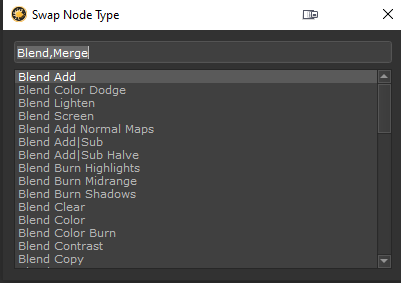
For quicker creation of the most common Blend Mode Nodes, a new default Hotbox has been added and assigned to the Shift+C Hotkey.
Since it's a Hotbox it can be easily edited and modified via the Hotbox Manager.

To make it easy to convert an existing Nodegraph or Nodegraph Selection of Merge Nodes to Blend Mode Nodes, a convenience tool has been added


As Merge Nodes can have more settings than Blend Mode Nodes, you can use the settings in the dialog to determine
when a Replacement can still be made despite not existing on Blend Mode Nodes however usually you want to leave
the settings as they are by default to avoid any look changes.
Any replacement Action is fully undoable.

New Nodes have been added to the Pattern Engine:
Circular Pattern Generator Triplanar
These powerful nodes can generate complex circular patterns, optionally fully tileable.
|
|
Tip: As with any Pattern Engine node, it is good practice to bake the result into a Paint Node or Bake Point to prevent performance issues with complex graphs |
Sample presets have been added to the Procedural Tab of the Preset Browser, in the Radial Pattern Category


A new "Shape Masking' Option has been introduced to all Pattern Engine Nodes.
Shape Masking, other than regular Masking, will never cut through a cell of the Pattern Nodes.
Masks are evaluated always binary for a cell .. a cell is either fully visible or fully invisible.
Shape Masking is now available on the following Nodes
A new Node "PBR Safe Checker" has been added.
The Node will check your Albedo/Base Color and/or your Metallic Map for PBR Compliance e.g.
Your Base Color / Albedo will be checked if too dark or too bright
Your Metallic input will be checked against the Base Color Input, to see if the Base Color has valid values in Metallic Areas.
The main node output will give a heat map, indicating incorrect values in red
The Mask Outputs provide Masks of incorrect values for easy regrading.
All Smart Masks have been updated with new features
Textures used inside Smart Masks can now be blurred using Extension Pack's Mip Map Blurring
The newly introduced Alligator Noise is now available as a Noise Option
Debug Modes which previously only existed on the "Mask Builder" are now available on all pre-made Smart Masks
The Global Brightness Option now uses Mari's default Brightness Algorithm, which no longer affects Black Values
See all Smart Mask improvements in action here
Mari 6.0 introduced Teleport Broadcast and Receiver nodes .. Mari's native answer to Extension Pack's Radio Node System, allowing among other things,
broadcasting nodes across Graph Hierarchies.
Extension Pack 6 now fully supports Teleport Nodes and adds some small enhancements to their workflows, that previously existed only on radio nodes
Plugging a node into a Teleport Broadcast Node, that does not have a Broadcast Channel defined, will automatically create a Broadcast Channel
with the plugged in Node Name
Creating a new Teleport Receiver Node, while a Teleport Broadcast Node is selected, will automatically hookup the Receiver to the Broadcast Node
Extension Pack's "Connect to Transmitter" Dialog (part of Radio Node System) now also works with Receiver Nodes.
If a Receiver is selected when executing the Dialog (e.g via the hotkey Shift + R), all available Broadcast Channels are listed instead
"Smart Rename Node" now has special logic do deal with upstream and downstream Receiver and Broadcast Nodes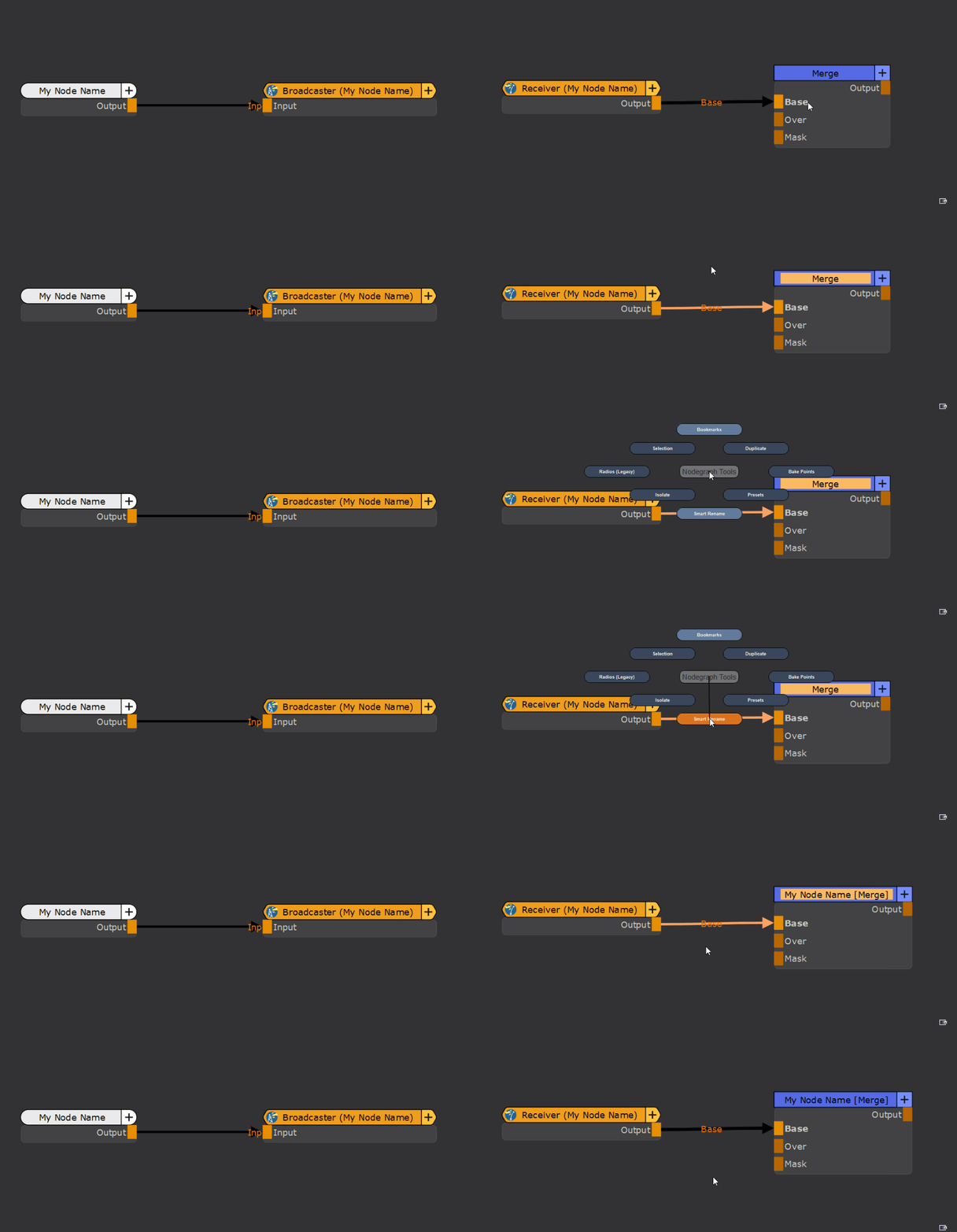
"Jump to Node Input / Output" when run on Receivers or Broadcasters will now jump to the connected Teleport Node (Broadcaster or Receiver), even if the
Node is in a different Nodegraph. If multiple connections are found a dialog will let you choose where to jump to.
The Radio Node Function "Jump to Connected Input" now also works with Receivers
The "Focus Channel Content (stop after Radio Nodes)" Option found in the Channel Palette has been renamed to "Focus Channel Content (stop after Receivers)"
and now works both with Radio Nodes & Teleport Nodes
The Nodegraph Selection Options "Select Upstream (stop BEFORE Radio Nodes)" and "Select Upstream (stop AFTER Radio Nodes)" have been renamed ( [... (stop AFTER Receivers)] ,[... (stop BEFORE Receivers)]
and now work both with Radio Nodes & Teleport Nodes
Broadcast & Receiver Nodes are now included in the "Node Creation" Hotbox (Hotkey "C") in the Nodegraph, replacing the previous Radio and Radio Transmitter Entries
The default Hotkeys for Radio Node Creation ("R") and Radio Transmitter Creation ("T") now create Receivers and Broadcasters instead.
"Connect to Transmitter/Broadcaster" remains on Shift + R.
Please note due to a bug, in Mari 6.0v1 this might not be the default. It will be the default in Mari 6.0v2 and above.

You can now directly set an Image from the Image Manager as the current Brushtip, using the Right Mouse Click "/ Ingest / Set as Brushtip" Option
The Substance Baker Bridge now allows you to store Backups of your Bakes on Disc for later use.
This can be handy if you wish to use the Bakes elsewhere and saves you from having to re-export the bakes out of Mari

Previously the Substance Baker Bridge Close button ('X') in the title bar was deliberately disabled, forcing you to close it via the dedicated "Close Button".
Going forward you are able to close the Bridge dialog again via the Titlebar.
The "Mask Shelf" is now named consistently "Preset Browser" to better reflect its main function and evolving nature away from just housing Mask Presets.
In the Nodegraph the Preset Browser can be found under the Presets Submenu of the Right Mouse Click Context Menu
In the Layerstack it can be found in the Right Mouse Click Context Menu or the main window "Layer" Menu

Presets now support optional descriptions, that will be displayed in the Tooltip.
Descriptions can be set when creating a new Preset of via the "Rename Preset" Dialog


Convenience Background Themes for the Viewport have been added to the "View" Menu
The following Themes are available:

Extension Pack 6 makes a series of small changes to the built Nodegraph Style and Behavior.
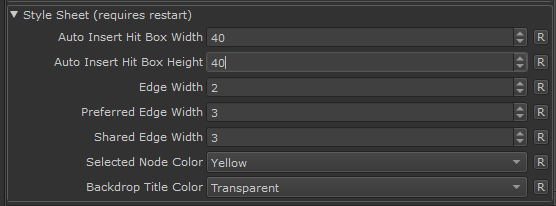
All changes have been exposed as customizable Preferences.
The Backdrop Titlebars now assumes the shade of the backdrop underneath
The Node Selection Highlight Color has been slightly adjusted to make selections stand out more
Lines (Edges) connecting Nodes are now slightly thinner
Auto-Inserting Nodes by dragging them onto Edges has been greatly improved with a much larger hitbox

To deal with cases where you temporarily might want to turn off Auto Inserting of Nodes, a new Checkbox has been added to the Connection Menu (Hotkey F8)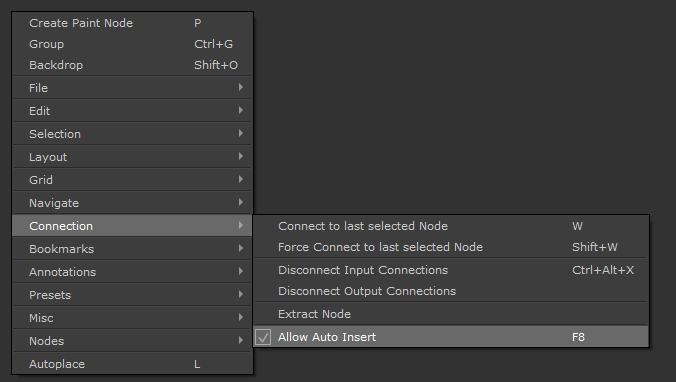
All Nodegraph Changes can be customized via a new Preference Section in the Nodegraph Tab of the Mari Preferences
|
|
Changes in the preferences require a Mari restart to take effect |
The Hotbox Manager now supports Hotkey Assignments involving Modifier Keys such as CTRL, ALT and SHIFT
Key Modifiers are now supported from within the Hotbox Manager System
A new "Execute on Button Activation" Option has been added to the Hotbox Settings. This will execute a button as soon as the Cursor hits it
A new "Border Highlighting" Checkbox has been added to the Custom Style Section of a Hotbox Button.
Border Highlighting will only highlight the borders of a button when the Cursor is hovering above it, instead of the whole button
Border Highlighting off vs Border Highlighting on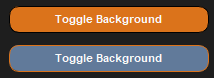
Custom per-Button Styles can now be stored via their own Preset System
Hotboxes now support displaying SVG Vector Icons
the following changes and additions have been made to extension pack's default hotboxes:
The Mari 6 Roller Brush has been added to the Tools Hotbox ("C")

The "Manifold" Hotbox no longer is mapped to a hotkey by default.
You can reassign a Hotkey via the Hotbox Manager.

A new "Blend Mode Nodes" Hotbox has been added ("Shift + C")

Node Favorites Hotbox ("C") now contains Teleport Nodes instead of Radio Nodes.
"Repeat Last" Button has been added, to repeat the last Node creation

New Node Style Hotbox added ("Z").
Please note by default the Hotkey is assigned to a separate action in the Nodegraph Menu calling this hotbox,
not directly to the Hotbox.

A new Paint Node Background Preset Hotbox has been added ("Shift+P")

A new Quickmarks Hotbox has been added. This is not assigned to any hotkey by default.

Two "blind" Hotboxes have been added ("Mouse Direction"). Those are utilized by the Mouse Direction
based Node Aligning ("Q") and Distributing System ("Shift+Q")
Yes, you will likely click it away instantly ... nevertheless, Extension Pack now comes with a brand new, dynamically updating Welcome Screen

Apart from things you expect to find there (Documentation, Bug Reporting etc.) the Welcome Screen also contains
orandomized Extension Pack & general Mari Tutorials for Beginners and Advanced Users
orandomized Community Spotlight featuring tutorials by creators from the Mari community
If you want to cycle through the available content you
you can use the shuffle button
oIf available, information about new upgrades and patches with direct access to their release notes.
If a new Update is available the Welcome Screen will be shown on start every now and then, even if 'Show on Startup' is disabled.

oAnnouncements about Live Streams etc.
The Extension Pack Update Check in the Help Menu will now also display release note information about new updates, if one is available - same as the welcome screen
To deal with customers without Internet access, the Welcome Screen can also run with pre-cached information if the internet connection times out.
The timeout can be edited via a setting the Misc Tab of the Preferences and an Environment Variable.
Set the timeout to 0 to prevent the Splash Screen from even trying to contact the web
Modo Bake Presets are now auto-installed and no longer need to be installed separately
Swap Nodes has additional logic when launching it with a Blend Mode Node selected. It will show you other Blend Mode Nodes first in the list.
Reload Paint when run with a Patch Selection active, will now ask if only to reload previously imported paint for the selected Patches or all Patches of the Model
The Nodegraph right mouse click menu has been reorganized and new groups have been added, to cope with Extension Pack's expanding toolset
A Projectors Camera Position and Rotation can now be updated from the current Viewport Camera by right Mouse Clicking on it and using the "Update Projector Camera" Option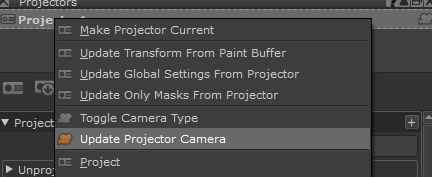
All loaded Projectors can now be removed in one click using the new "Remove All Projectors" Option
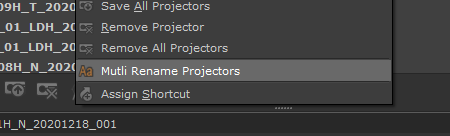
You can now batch rename Projectors with a flexible renaming tool, via the new "Multi Rename Projectors" Option
A new "Remove unused Selection Groups" has been added to the Selection Groups Right Mouse Click Menu.
It will remove any Face Selection Group that no longer belongs to an Object or Object Version.

You can now batch rename Selection Groups with a flexible renaming tool, via the new "Multi Rename Selection Groups" Option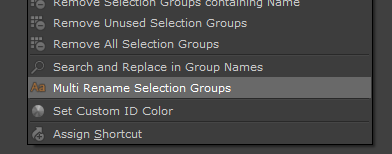
Several actions previously only available in the Right Mouse Context Menu, have been added as Buttons to the Channel Palette e.g.
oFlatten
oImport into new/current channel

The "Ingest Images into Node/Layer" option, available in the Image Manager, will now always prefer EXR Files if two identical files are selected with their only difference being their File Type.
A new "Optimize Loading" Checkbox has been added below Image Attributes to the following nodes
When ticked on, the Node will only evaluate if an image is assigned in the image attribute.
If it finds that no image is assigned, Node evaluation is skipped and it falls back to the Base Color Values of the Node.
The checkbox is off by default for newly created Nodes, on by default for Nodes used inside Material Templates
The Arnold Material Presets in the Shelf now default to a Diffuse Weight of 1.0 instead of 0.8
The Axis Projection Node now allows UV Offsets per Projection Axis
The Nodes "Remap Color (AL)" and "Remap Float (AL)" have been renamed to just "Remap Color" & "Remap Float"
The Node "Grade+" has been renamed to "Grade (Masked)" to be in line with the naming of other masked adjustment nodes
A new node "Object Center" has been added, that returns the object center world space coordinates as RGB Values
The Color Range to Mask Node(s) now have a second output called "Mask". This output always gives a black and white mask regardless of what is set in the Preview group or if "Grade Mode" is turned on
Descriptions and Tooltips have been added for all Extension Pack Menu Actions. In the Status Line, Extension Pack Actions are prefixed with [EP]
All Extension Pack Main dialogs are now prefixed with [EP] in the Title Bar
Extension Pack's own Symmetry Painting has been deprecated as Mari by now has its own, superior Symmetry Painting
Extension Pack customized Tools Toolbar Versions (can be activated in the Preferences) now include the Mari 6 Roller Brush.
If you are already using a Extension Pack Tools Toolbar, it will automatically update after a Mari Restart.
The "Shelf from Folder" Option will now be added to the Mari Shelf on Mari Start .. not as before only when a project is open
The Text Tool for now has been placed into the Extension Pack Toolbar, to avoid a crash on Mari Exit when the Text Tool was registered to the main Tools Toolbar.
You can now clear your Undo history via the Extension Pack Menu, under the History Submenu / Clear History
You can now manually resume your Undo history via the Extension Pack Main Window Menu, under the History Submenu / Resume History.
While rare, sometimes (due to Bugs) your Undo History Recording might stop. This action will resume it without the need to restart Mari.
New Shortcuts you might want to know about:
|
|
Tip: Extension Pack will not overwrite your own shortcuts. If you already have a user assignment on a key, the default mapping will be skipped |
NODEGRAPH:
|
|
Create Teleport Receiver Node. |
|
|
Create Teleport Broadcast Node |
|
|
Leave Subgraph and go up one level |
|
|
Enter Subgraph |
|
|
Go to Root Level Graph |
|
|
Save Nodegraph Position as Quickmark 1 (use 2,3,4,5 for other positions) |
|
|
Load Quickmark 1 (use 2,3,4,5 for other positions) |
|
|
Open Node Styles (Color, Shape) |
|
|
Create Backdrop |
|
|
Select closest Node to cursor and view Node Properties |
|
|
Select closest Node to cursor & attach viewer |
|
|
Select closest Node to cursor (without viewing Node Properties) |
|
|
Connect to last selected Node / Cycle through open input ports |
|
|
Force connect to last selected Node (Port Overwrite Mode) / Cycle through input ports |
|
|
Disconnect Input connections |
|
|
Image Note from View |
|
|
Node Thumbnail from View |
|
|
Image Note Icon Library |
|
|
Quick Align Nodes. Move mouse in different directions for different alignments |
|
|
Quick Align Nodes Node Stream Aware. Move mouse in different directions for different alignments |
|
|
Quick Distribute Nodes. Move mouse in different directions for different modes |
|
|
Blend Mode Node Hotbox |
|
|
Paint Node Background Preset Hotbox |
|
|
Preset Browser (formerly known as Mask Shelf) |
|
|
Jump to Node Input |
|
|
Jump to Node Output |
|
|
Jump to previous Paint Node in Stream |
|
|
Jump to next Paint Node in Stream |
|
|
Jump to previous Bake Point in Stream |
|
|
Jump to next Bake Point in Stream |
|
|
Jump to previous similar (matching current selection) in Stream |
|
|
Jump to next similar (matching current selection) in Stream |
|
|
Toggle "Allow Auto Insert" of Nodes by dragging them onto an Edge/Wire |












|
|
A few of the Bugfixes listed below were implemented already in patches for Extension Pack 5 R9 (e.g. 5R9.v6 etc.) |
Saved custom Brushes were deleted from the shelf on each Mari restart
The Text Tool when registered to Mari's Main Tools Toolbar caused a crash when exiting the Mari Application. Until a fix is supplied
by the Foundry, the Text Tool is now located in the Extension Pack Toolbar.
You can also use one of the alternative Tools Toolbar Layouts shipping with Extension Pack, which still include the Text Tool in the Tools Toolbar.
Loading of custom Environment Map Paths on Mari Startup could fail and hang if Thumbnail or Cache Data was contained in the Folder
The Environment Variables MARI_EP_PREVENT_MARI_HDRI_LOADING and MARI_EP_PREVENT_3RDPARTY_HDRI_LOADING were no longer respected
In some cases the Extension Pack startup install Progress Bar could get stuck and not close on its own
In some cases the Extension Pack startup install Progress Bar would pop up, and go straight to 100% even though noting was being installed
The Mari Preference "Background Exporter" was being forced to "Fast Exporter" on each Mari Restart.
Having multiple users use Extension Pack on the same machine could cause file ownership clashes.
Some files on Linux had incorrect permissions when written. All files are now written with 777 permission (read/write for all)
On Windows Machines, pointing the Environment Variable MARI_EP_LICENSE_FILE_PATH directly to a (unmounted) network location no longer worked
and required network drive mounting as workarounds.
The "Setting Up Extension Pack" Progress Bar got launched with "Installation of Mari HDRIs" even if Mari HDRI's where already installed
Deleting a single HDRI Image from the default HDRIs installed to the shelf, would install that missing HDRI on each restart .. over and over, creating duplicates.
Indie and Freelance Licenses were incorrectly identified as Studio Licenses in the Licensing Dialog.
Changes to a Hotkey assignment on an action added by third party (e.g. any Extension Pack Action) were 'forgotten' after a Mari restart.
The Hotbox Manager displayed a __pycache__ subfolder for Hotboxes containing Python Actions
The Light Hotbox kept resetting itself to the default F4 Hotkey on Mari restart, even when changed by the User
The Hotbox 'Aiming' no longer pre-selected a button unless the aiming line was crossing a button or the cursor was over the button
On Linux, Hotboxes could appear with a black background instead of a transparent one
Multiple Extension Pack Actions (e.g. Swap Node Type, Swap Layer Type etc.) created multiple Undo entries when executed.
Some Extension Pack Dialogs (e.g. Connect to Radio Transmitter) had their contents cut off when a larger custom font size was set via the Mari Preferences
The Substance Baker Bridge did not correctly import bakes, if the Importer Mode in the Mari Preferences was set to "Background Importer"
Dragging a manually imported Shelf Image into Layerstack or Nodegraph would print a python error.
Some Image Types from the shelf could cause an 'Image not Found' error when applied to a Node via Drag & Drop
Dragging an Item from the Preset Browser into the Nodegraph would under certain conditions place the nodes at the position of the cursor but mirrored across one coordinate axis of the nodegraph (so very, very far from the cursor)
Dragging an Item from the Preset Browser would add the original sized thumbnail to the cursor to indicate a drag & drop event. If the thumbnail was very large, this could obscure and hinder visibility in the area where the user wanted to drop the item
Paint Through Image Mirror Options were not added to the Paint Through Tool Toolbar, if the tool was activated by dragging an image into the canvas
Copy/Pasting Node Attributes would clear the clipboard after pasting, allowing only one paste action to be performed
Copy/Pasting Node Attributes would paste Image Attributes in a way, that new image instances would be loaded into the image manager
Adding more than 7 Applications to the 'Open with ...' Image Manager dialog did not work and would cause Mari to error on start
In some cases using 'Align Nodes' would stop the Undo History Recording
Node Aligning could give a python error in some cases
Node Align Right sometimes aligned nodes to the 'average center' of the node selection instead of the far right.
Node Align when run on a single Node connected to multiple nodes, would only align itself to the last node of the chain.
Node Align could produce undesirable results if the reference node was a dot node.
Project Template import progress Dialog would not auto-close when finished when specific import settings were chosen
Patch Bake to Image Manager could fail if the node to bake had illegal characters in its name that the operating system cannot write into a filename
Due to a Mari Bug, some tools were showing already deleted channels (e.g. Channel Exporter). Interacting with those deleted channels could cause Mari to crash.
A workaround for the bug has been implemented to prevent these Channels from appearing in Extension Pack tools.
Export Custom Channel Selection could error and hang when no Raw or Utility-Raw Colorspace was found in your OCIO file. Extension Pack will now try to resolve the issue
on its own, and if unable give you a warning message.
Export Custom Channel Selection could error and hang processing Bake Points containing invalid, non-existent UDIM numbers in their Bake Range
Export Custom Channel Selection would export the wrong channel information if the channels to export were connected to a multiChannel Output Node and an export Mode other than "Full Resolution" and "Default Bit Depth" was chosen.
Dragging a Preset from the Preset Browser, could show an overly large Thumbnail on the Cursor, obscuring areas of the target drop area (e.g. Nodegraph or Layerstack)
Duplicate & Flatten Channel would not rename a channel correct when set to "Duplicate then flatten Original"
Material ID from Selection Groups would fail, if invalid characters (e.g. '/', '%' etc.) were present in the Selection Group Name while baking Geo Channels.
The "Levels" Dropbox was disabled when "Inherit from Source Object" was ticked on in the Subdivision Dialog
The Extension Pack Toolbar disappeared when loading or resetting a Mari Layout
the 'Garbage Collection' command in the Extension Pack / Project Menu gave a python error
The Function Node "Discreet AB" gave a shader compile error.
Some nodes added a 1 degree rotation in the data transmitted in their alpha channel for Normal Map rotation
The Axis Projection node had a very slight offset from the center of the object when in "Center" mode. This change will only apply to new node instances.
The Axis Projection Node's "Bottom Alignment Mode" was mirrored across the X Axis. This change will only apply to new node instances.
Pattern Generator 2D Nodes did not recalculate Normal Map orientation, if the rotation values were fed into the node via a Manifold Node
Pattern Generator 3D Nodes did not recalculate the Normal Map Orientation, if the Projection Axis was modified.
The Manifold3D Node when controlled via a Locator was giving inverted results (e.g. moving locator up would translate result down)
Extension Pack's Python API has been refactored to deal with the ever expanding scope of Extension Pack.
New classes have been added and some methods have been moved into more logical or granular classes.
|
|
While classes might have changed, the Method Names haven't. Use the Python API Help or the Class Method Finder to |
Dialog Calls have been relocated into a subclass __epGUI__ e.g.
mari.ExtensionPack.nodegraph.__epGUI__.renameNodesUI()
New System Subclasses __epSystem__ have been added, to house mostly internal Extension Pack calls, that are not useful for general development. E.g.
mari.ExtensionPack.radioNodes.__epSystem__
A new Doc String Tag "Introduced" has been added. While for now all methods are set to "EP6R1" in the future this will help to track API changes and addition
between versions.
Doc strings have been unified across the entire API
Extension Pack's Python API Documentation is now dynamically generated on build, from the Doc Strings
Apart from the Online Version, Extension Pack's Python API Documentation is now also available via the Help / SDK / Python Menu
The "Class Method Finder" Dialog (/Python/Python Tools Menu) has received an update:
Improved Docstring Formatting
Font Size Option

The "Action Finder" Dialog (/Python/Python Tools Menu) has received an update:
Display of "What's this" messages for actions

The SSL_CERT_FILE Environment Variable is now automatically set for the environment Mari is run in, on Linux Systems where the SSL Certificate is located
in default locations
This is to avoid issues that have come up in the past with Mari's shipping SSL Certificate on Linux being outdated, causing issues during e.g. Extension Pack
Licensing.
If the SSL_CERT_FILE Env var is already set, no action is taken.
If you have previously downloaded the Help Files for offline usage you should replace it with the new one using the method described here
BUGFIXES
•On Linux, Hotbox Buttons would stay selected even after the cursor left its space.
•Mari could show a shader compile error in the viewport on certain AMD Video Card Drivers
•Extension Pack could fail to load if the "Session" menu entry was missing for whatever reason in the Mari File Menu
•Select closest Node to Cursor (Hotkey E) did not view the Node Properties anymore, if the "Single Click Node Properties" Setting was toggled from on to off in the currently running Mari session. It would only work after a Mari restart
•Switching Objects would sometimes print a Python Console error
•Select closest Node to Cursor would sometimes select the backdrop node if the node cursor was within a backdrop.
•The icon of the "Help / Update Check" Action was still an Extension Pack 5 Icon
•The "Extension Pack Tutorials" Option in the Help Menu did not work anymore.
CHANGES
•Single Click Node Properties no longer forces open the Node Properties palette when the palette is closed
•Select closest Node to Cursor (E) on the other hand now always forces the palette open. Use CTRL+E if you don't want to view the Node Properties
•The 3D Scan Projection Wizard can now optionally adjust the loaded Projectors Clipping Plane to best fit the object. This will improve control on the "Distance Fade" Options of the Camera Projections
•Import Project Templates now allows you to filter for only the last version of a template
•Jens Kafitz - http://www.jenskafitz.com
The "Chappie" Demo asset used in Tutorials and Help Files has been kindly supplied by:
•John Olifinsky (Modeling) - Artstation
•Johnny Fehr (Texturing) - Artstation
The 'Leviathan' Demo Asset used in Tutorials and Help Files has been kindly supplied by Think Tank Training Center.
•David Letondor (Modeling) - Artstation
•Paul H. Paulino (Texturing) - Artstation
3D Scans were kindly provided by
•Clear Angle Studios UK - Website
Many thanks to Extension Pack's loyal Beta Testers for Feedback and Design Ideas.
•Peter Aversten
•Antoni Kujawa
•Rassoul Edji
•Stuart Ansley
•Johnny Fehr
•Vincent Dupnchel