REQUIREMENTS & INSTALLATION


REQUIREMENTS


MINIMUM MARI REQUIREMENT:  MARI 8.0v1


Mari 4.x  - 7.x  are supported by older Extension Pack versions which are included in your purchase


Mari Non-Commercial  is not supported due to restrictions by the Foundry


INSTALLATION DEMO VIDEO


INSTALLATION

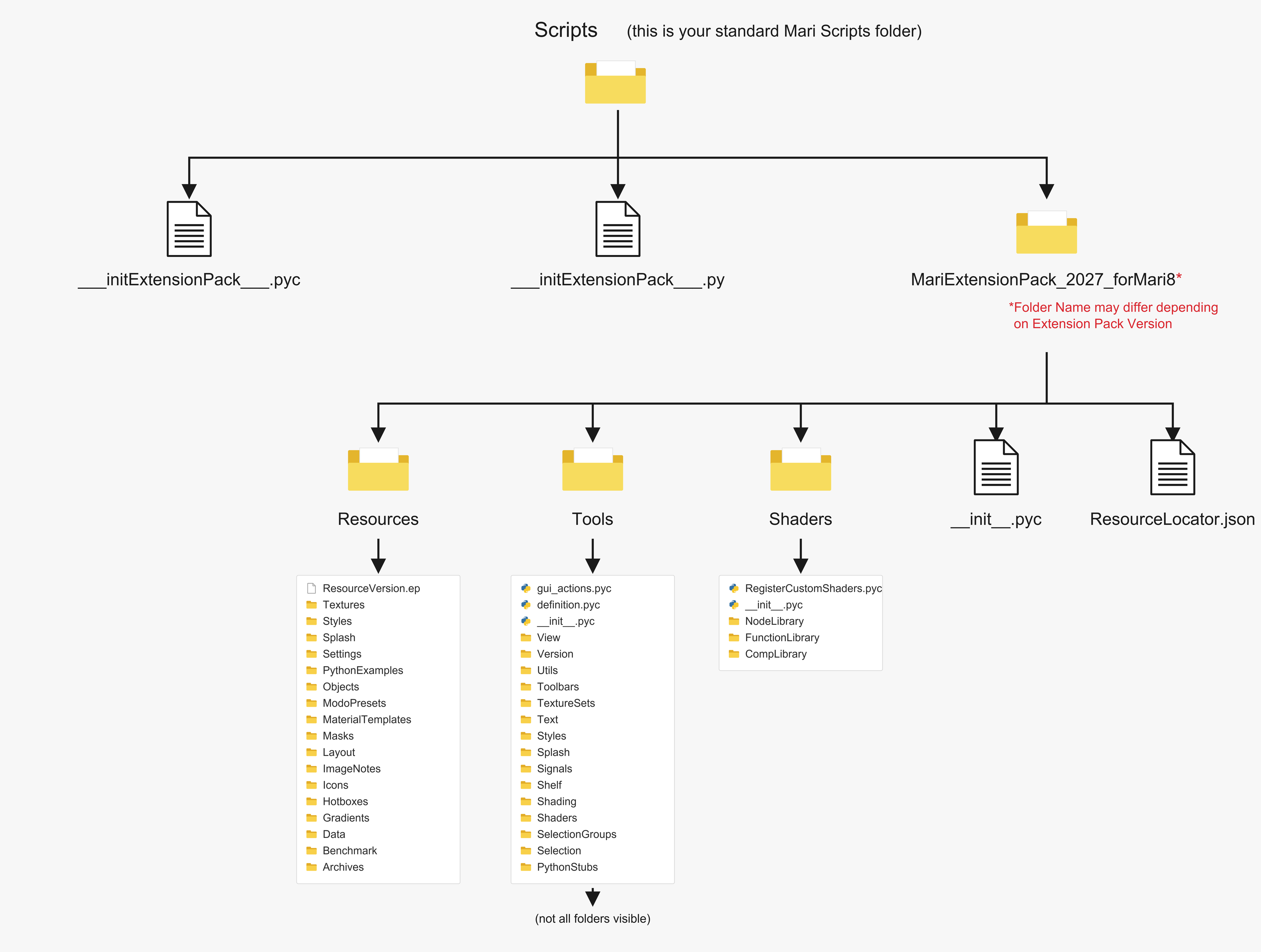
Your download consists of a ZIP File with its contents looking something like this:


•Installing Extension Pack


Locate your MARI User directory. Usually this can be found under:


▪MyDocuments / Mari /


If it does not exist already create a Scripts Directory


▪MyDocuments / Mari / Scripts /


Extract the files from MariExtensionPack.zip Archive into the Scripts Folder.

Please ensure that the ___initExtensionPack___.py file contained in the ZIP File is extracted as well.


Your Folder should look like this:


Please refer to Checking your installation on how to confirm a successful install.


•Installing Extension Pack


Locate your MARI User directory. Usually this can be found under:


▪UserDirectory / Mari /


If it does not exist already create a Scripts Directory


▪UserDirectory / Mari / Scripts /


Extract the files from MariExtensionPack_6.zip Archive into the Scripts Folder.

Please ensure that the ___initExtensionPack___.py file contained in the ZIP File is extracted as well.


Your Folder should look like this:


Please refer to Checking your installation on how to confirm a successful install.


CHECKING YOUR INSTALLATION


After you extracted the Zip file containing Mari Extension Pack, your file and folder structure inside the script folder should look like this:


The most common errors by users are:


Extracting the entire content of the downloaded zip file into a Subfolder (e.g. one named like the Zip file)

forgetting to extract the __initExtensionPack__.py and __initExtensionPack__.pyc files (overwriting possible old ones)


On Mari Restart you will be greeted with a Extension Pack Splash Screen if the Installation was successful.

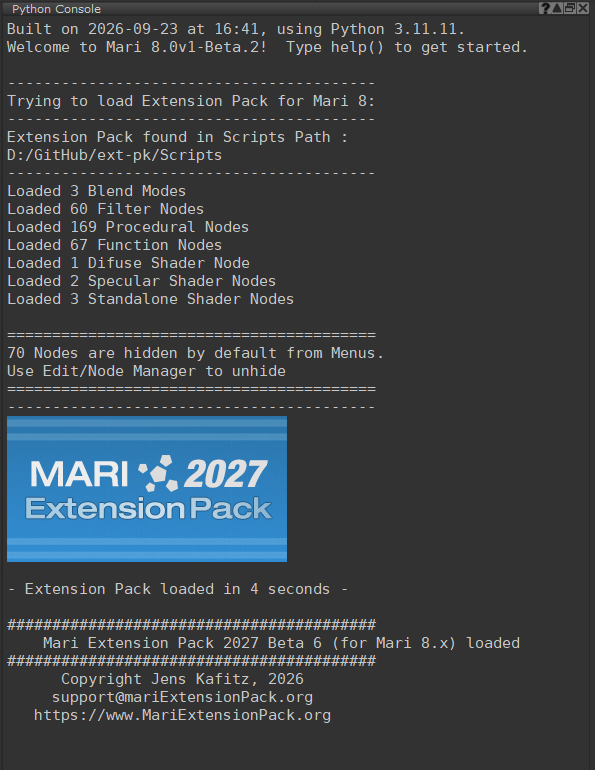
Additional Information about the Installation Process can also be found in the Python Console under the Menu Python/Show Console


 (Menu Python /  Show Console)


No errors should appear in the Python console.


If you are not seeing a successful installation please first re-confirm the file structure (see above) and then refer to the Troubleshooting Section of this Help


Example of a successful installation.

The Splash Screen is shown and the Python Console confirms initialization of the Plugin


DEPLOYMENT VIA GIT


Moving of Large Resources


If you are deploying Extension Pack inside a Studio via a git repository you can move the large resource files (icons, presets etc.) out of the main application

by following the Resource Moving Guide


Downloading Online Help


If you do not have an Internet Connection available on your workstation you can download this Online Help.

Follow the Download Online Help Guide for more information


LICENSING


•For Licensing Troubleshooting click here


To license Mari Extension Pack please choose the "Extension Pack Licensing" Option from the Help Menu and enter the email address used on purchase

as well as the License Key included in your Purchase Confirmation.


If not licensed manually, Extension Pack will run for a limited amount of time in trial mode before the Licensing Dialog will appear automatically.


Some License types will require sporadic internet access to verify the license on mari startup.


The Extension Pack Installation Folder ideally should be fully writable at the time of licensing.

After that it can be set to read only again if so required.


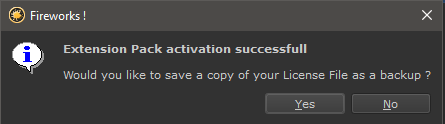
After Successful Activation you will be asked if you want to save a copy of the license file to a user specified location


In case of future Activation you can then directly point to that License File using 'Load Information from Existing File'


Depending on your License Type, your license is limited to a specific amount of machine activations. 
For example a "Indie" License type can be activated on two separate machines.


You can manage your license seats 


•via the "Manage Seats" Button in the License Dialog


•Or by directly accessing the Seat Manager Webpage


To release a seat locate the Machine you want to deactivate and click the release button twice


Studio Licenses can also license multiple users by pointing an Environment Variable MARI_EP_LICENSE_FILE_PATH to the copy of the License File saved via the Activation Dialog (above).

This has the benefit of having future updates of Extension Pack auto-licensed and is the recommended Licensing Method for Studios.
For additional Studio Licensing Information click here.