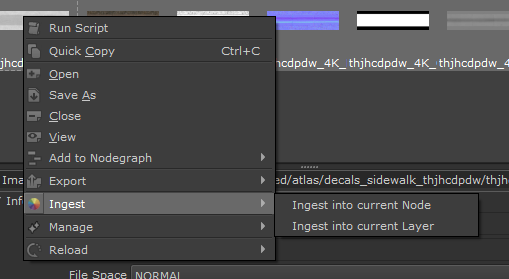
The Ingest Tool allows you to directly assign multiple selected images to a selected Layer or Node, if the Layer/Node accepts Image Attributes.
This allows for quick assignment of images and swapping of materials.
An Example ingesting selected Images into a selected Material Template
•Attributes
Lists all Image Attributes on the selected Layer or Node
•Images
Lists all selected Images from the Image Manager that can be assigned to an Attribute.
There are two standard settings
▪No Image (Transparent)
Does not set an Image onto the Attribute. If there already is an Image assigned, the assignment will be removed
▪Use Existing Image (No Change)
This option only is available if the Image Attribute already has an existing Image assigned. If this option is chosen
the Image Attribute will be left unchanged
You can change all dropdowns at once to No Image or use Existing Image via a right mouse click context menu
•Information
A information button usually appears if the Image Attribute already has an assigned image
•Presets
The Preset system allows you to save Naming Templates.
By default a 'Favourites' Preset is added (and automatically applied on Dialog open).
The Favourites Preset is dynamically generated based on your preferred assignments and continually changes and adapts based on your usage.
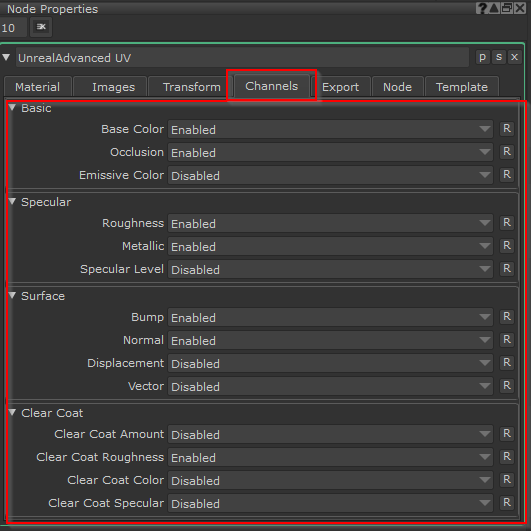
When ingesting images into an Extension Pack Material Template, the "Auto Manage active Material Streams" option becomes available.
When on (default), material streams/channels like "Specular Roughness" or similar will be turned off in the Material Template, if no image was assigned to them.
This will reduce complexity of the material decreasing time it takes to compile (visible in Mari by the "Spinning wheel") and increase Frames per second (fps) in the viewport.
You can always manually activate and deactivate material streams via their "Channels" tab in their node properties
•Using the Dialog you can save Presets of Channels Names and Channel Configurations, to quickly recall them between projects.
•Presets can be exported and imported using configuration files.
Preset Dropdown
Choose from a saved preset.
Create new Preset
Adds a new preset to the preset list.
Delete Preset
Deletes the currently active preset.
Update Preset
Updates the currently selected Preset with the settings found in the main section of the dialog.
Rename Preset
Renames the currently selected preset
Export Presets
Exports all presets in your dropdown as a configuration file.
Import Presets
Import Presets from a configuration file. If presets with same names already exists, a dialog will prompt you for conflict
resolving
Example of a conflict resolve dialog for importing presets
 Where to find it:
 Image Manager Palette / Right Mouse Click on Image / Ingest /
 Image Manager / Per Image Info Panel / Ingest /