
|
Radio Node System |
 Auto-Connect to Transmitter on Node Import

The Radio Node System is a combination of custom nodes for the Nodegraph and Menu actions interacting with these Nodes.
|
|
Radio Nodes are essentially "free" nodes. Their usage does not give any performance penalties |
The purpose of the System is to provide the option to hide connection lines between nodes in order to have a cleaner Nodegraph with less intersecting lines.
Hiding and unhiding a connection to a radio node using Right Mouse Click / Misc / Radios / Toggle Radio Nodes.
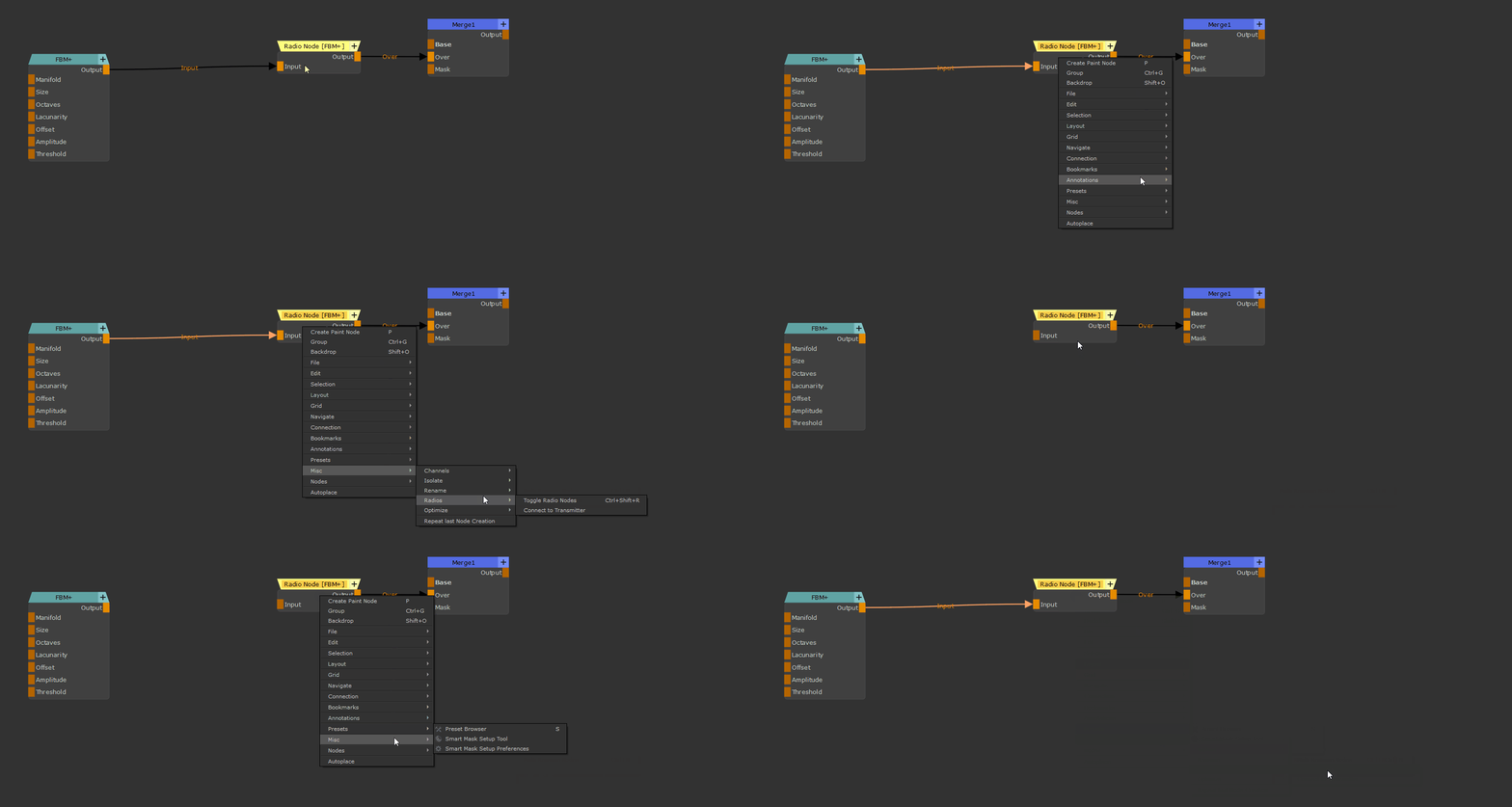
In addition to directly connecting a Radio Node to another Node you can also expose nodes anywhere in the graph via a Radio Transmitter Node.
Radio Transmitter Nodes allow you to connect a selected Radio Node via the Right Mouse Click / Connection / Connect to . Option (Shift+R) to a Transmitter anywhere in the Graph.
Connecting a selected Radio Node to a previously created Radio Transmitter Node via the Right Mouse Click / Connection / Connect to .. Dialog

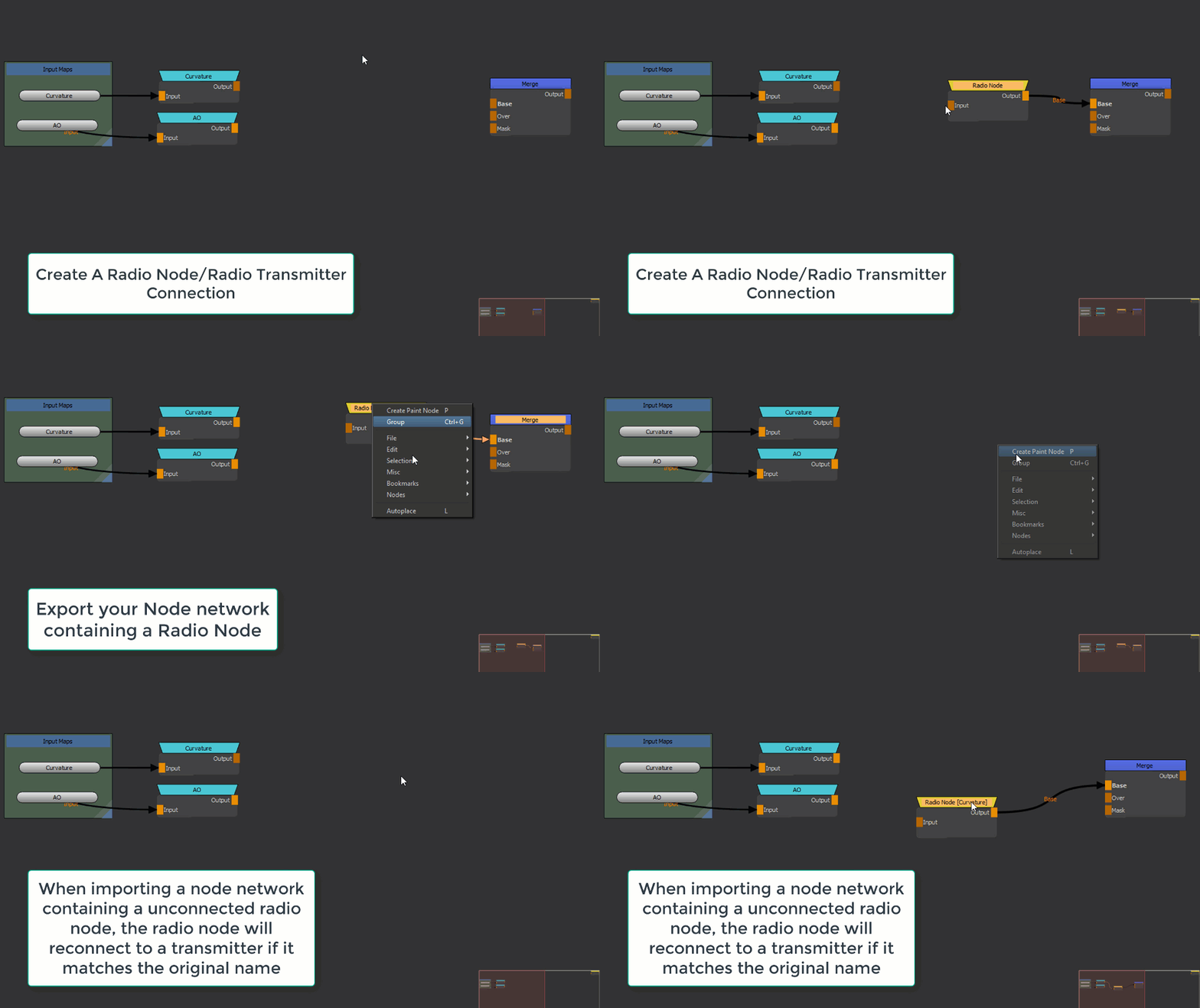
An additional function of the Radio Node System is to automatically reconnect imported Node Networks to specified Transmitter Nodes.
Example of Automatic Connection on Import
If you import a Node Network into your Nodegraph - either via Session Scripts or the Right Mouse Click / Edit / Import Nodes Function -
any radio node of that imported network that does not have a connection will try to reconnect to a Transmitter Node with the same Name that was connected to the Radio Node before it was exported.
This functionality works across projects allowing you for example to expose commonly used information such as Occlusion, Curvature, Material ID maps etc. via Transmitters and creating and exporting Node Network Templates that can automatically detect these Outputs in any Project you import the templates into.
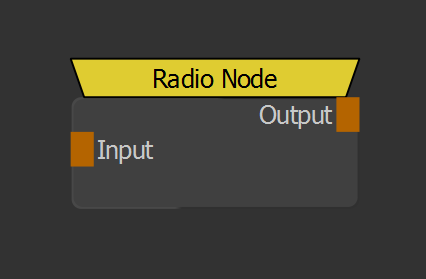
 Where to find it: (This Node is available in the Nodegraph only)

 NodeGraph / Right Mouse Click / Add Nodes / Misc / Extension Pack /
Shotcut (Nodegraph Only): Non assigned
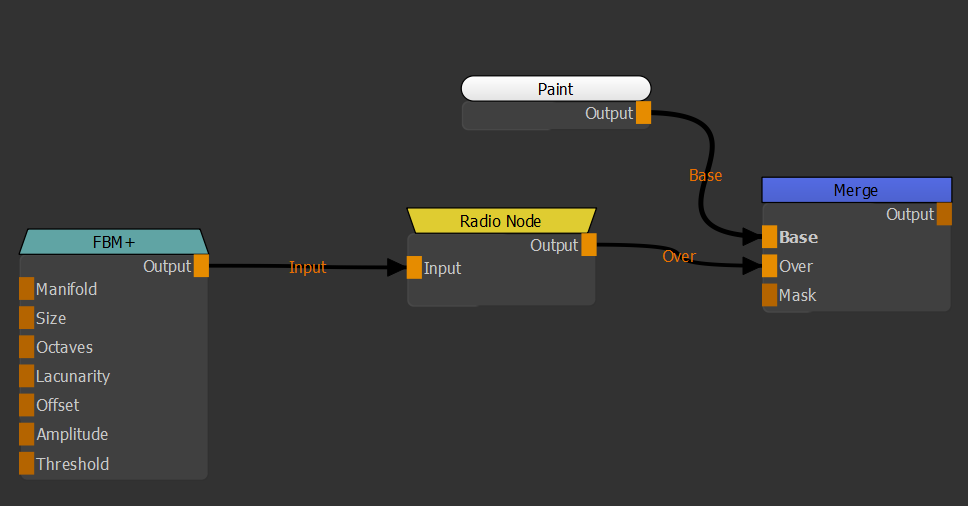
The Radio Node is a custom node with its only purpose being to act as a 'dot' or 'connection' that can hide its input line.
You can connect its Output to another Node just like any other Nodegraph Node..
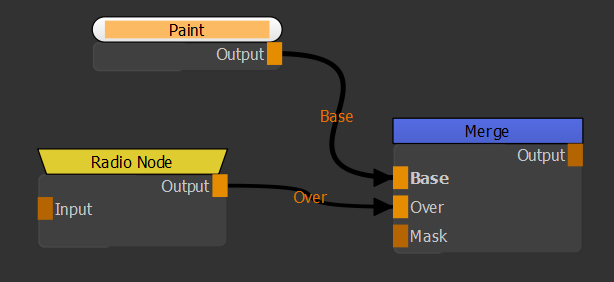
..and feed another node into its Input. The Radio Node does no processing.
It's only purpose is to pass through incoming information
|
|
Naming Radio Nodes will auto inherit the name of the Node they are connected to, unless manually renamed. The inheriting of Node Names ignores content in Square Brackets. Example: A Node MyColor [Transmitter] is connected to a Radio Node. The Auto Naming of the Radio Node will Name the Radio Radio Node [MyColor] |
Where to find it: (This Node is available in the Nodegraph only)
NodeGraph / Right Mouse Click / Add Nodes / Misc / Extension Pack /
Shotcut (Nodegraph Only): Non Assigned
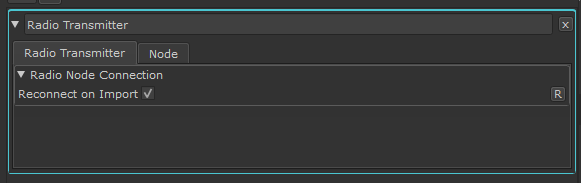
The Radio Transmitter Node is a custom node that can be called by a Radio Node from anywhere inside your current Nodegraph via the Right Mouse Click / Connection / Connect to . Option (Shift+R) Menu Option.

It can can be left either without an output connection or can be utilized as part of a network chain

Radio Transmitter Nodes contain a checkbox (on by default) to determine if they are accepted nodes for the Automatic Reconnection of Radio Nodes on Import
|
|
Naming Radio Nodes will auto inherit the name of the Node they are connected to, unless manually renamed. The inheriting of Node Names ignores content in Square Brackets. Example: A Node MyColor [Transmitter] is connected to a Radio Node. The Auto Naming of the Radio Node will Name the Radio Radio Node [MyColor] |
Where to find it:
NodeGraph / Right Mouse Click / Misc / Radios
Main Window / Extension Pack / Nodegraph / Radio Nodes /
Shotcut (Nodegraph Only): Ctrl + Shift + R
Toggle Radio Nodes allows you to hide and show connections on a Radio Node.
•If your Node selection in the currently open Graph Tab includes Radio Nodes, the selected Radio Nodes will be switched to their opposite state - visible connections will become invisible, invisible connections will become visible
•If your Node selection in the currently open Graph Tab includes Radio Transmitter Nodes, the Radio Nodes connected to the Transmitter will be switched to their opposite state - visible connections will become invisible, invisible connections will become visible
•If your Selection is empty or does not include Radio Nodes or Radio Transmitter Nodes, all Radio Nodes in the currently open Graph Tab will be switched to invisible on the first command execution, then to visible on the second.
When Radio Node Lines are hidden, the Radio Name will be appended with the Name of the Node connected to the hidden connection.
Where to find it:
NodeGraph / Right Mouse Click / Connection / Connect to ..
Main Window / Extension Pack / Nodegraph / Radio Nodes /
Shotcut (Nodegraph Only): Shift + R
With one or multiple Radio Nodes selected, executing the Right Mouse Click / Connect / Connect To ... Menu Option will display a list of all available Radio Transmitter Nodes
in your current Nodegraph. By selecting one of the Radio Transmitter Nodes, the selected Radio Node(s) will automatically connect to the chosen Transmitter.
oThe last created Radio Transmitter will always appear at the top of the List
oFiltering for Radio Transmitters allows Name Narrowing or Comma Separation of multiple Keywords
oNavigate the List using your mouse or arrow keys. Confirm by double clicking or pressing RETURN
oRadio Nodes can be connected to a different Transmitter at any time
oRadio Nodes Connections after choosing a Transmitter will be hidden by default. This can be adjusted via a prefernce in the Mari/Edit/Preferences/Nodegraph Section.

Using a combination of Radio Nodes and Transmitters allows for a high degree of automated workflows through the use of Automatic
Connection Building when importing Node Networks through the Right Mouse Click / Edit / Import Nodes or File / Session / Options in Mari.
If your imported Node Network contain one or multiple Radio Nodes that
•do not have a connection (hidden or invisible)
•contain a Node Name Identifier in Brackets [ ]
your current Nodegraph will be searched for a Radio Transmitter Node matching the Name in the Radio Node's Square [ ] Brackets
If ...
•a Transmitter matching the name specified within the radio node [ ] exists
•if the transmitter has its 'Allow Automatic Reconnect on Node Import' Option in the Node Properties turned on
•if 'Allow Automatic Reconnect on Node Import' is turned on in the Mari Preferences / Nodegraph Tab
... the imported Radio Nodes will be automatically connected to the Transmitter after import.
|
|
Naming Radio Nodes will auto inherit the name of the Node they are connected to, unless manually renamed. The inheriting of Node Names ignores content in Square Brackets. Example: A Node MyColor [Transmitter] is connected to a Radio Node. The Auto Naming of the Radio Node will Name the Radio Radio Node [MyColor] |
This workflow is recommended for templated nodegraphs, gizmos etc. that always need to access per-project information such as Occlusion, Curvature etc.
This automatic connection behavior can be deactivated via a Preference under Mari / Edit / Preferences / Nodegraph Section
|
|
Additional Actions The actions below are not embedded into the Mari interface but can be found under the Scripts Menu and are available for Hotkey assignments in the Hotkey Editor |
Where to find it:
Main Window / Extension Pack / Nodegraph / Navigate
 Shortcut: [ ]
Jump to Node Input ( Hotkey "[" ) and Jump to Node Output ( Hotkey "]" ) can be used to jump "across the gap" of a Radio Transmitter and Radio Node

Where to find it:
Main Window / Extension Pack / Nodegraph / Radio Nodes /
Shortcut: (unassigned, use "Edit / Shortcuts" to assign)
Toggle Selected Radio Nodes is nearly identical to Toggle Radio Nodes however it only works on selected radio and radio transmitter nodes
and will not hide/unhide all connections in the currently open graph tab, when no radio nodes are selected
Where to find it:
Main Window / Extension Pack / Nodegraph / Radio Nodes /
Shortcut: (unassigned, use "Edit / Shortcuts" to assign)
Expand all Radio Nodes will set all Radio Node connections in the currently open Graph Tab to visible
Where to find it:
Main Window / Extension Pack / Nodegraph / Radio Nodes /
Shortcut: (unassigned, use "Edit / Shortcuts" to assign)
Collapse all Radio Nodes will set all Radio Node connections in the currently open Graph Tab to invisible
Where to find it:
Main Window / Edit /Preferences / Nodegraph Tab /
A small number of preferences exist to better configure Radio Node behavior to your needs.
•Auto Hide Transmitter Connection
When On, a Radio Node Connection will be automatically toggled hidden when a connection is made to a Transmitter via the Connect to Transmitter Tool
•Allow automatic Transmitter Connections on Import
Turns off the functionality to automatically reconnect imported Radio Nodes without a Connection to a Transmitter matching
the [ NODENAME ] (in Square Brackets) on the imported Radio Node.
