|
Quick Unproject |
 Quick Unproject View (to Image Manager)
Quick Unproject Channel (to Image Manager)
 Quick Unproject Layer (to Image Manager)
How to correctly line up an unprojected image with your model
The new Quick Unproject options found under the Camera Menu will unproject directly to your image manager
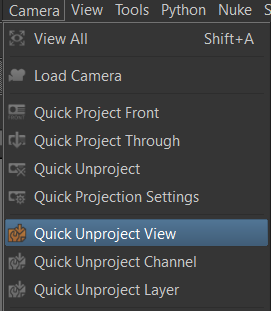
 Where to find it:
 Main Window / Camera /
Main Window / Extension Pack / Camera /
Shortcut: (unassigned, use "Edit / Shortcuts" to assign)
Quick Unproject View will unproject whatever you are currently viewing in the viewport, so will work with Nodegraph Viewers and even
full Shader views.
 The View will be unprojected at two times your paintbuffer resolution or maximum 16k
The View will be unprojected at minimum 16bit
The files will be saved in the directory specified in the Quick Unproject Path in the Set Project Path Tool
The unprojected Image will always be 'squared' (1:1 pixel ratio).
The size of your projection (framing of subject) is determined by the horizontal size of your PaintBuffer
Images will be imported into the Image Manager timestamped and named after the channel they came from
Images will be imported into the Image Manager into a Tab called 'Quick Unproject'

Where to find it:
Main Window / Camera /
Main Window / Extension Pack / Camera /
Shortcut: (unassigned, use "Edit / Shortcuts" to assign)
Quick Unproject Channel will unproject the currently active channel and place the result into your image manager.
The Channel will be unprojected at two times your paintbuffer resolution or maximum 16k
The Channel will be unprojected at minimum 16bit
The files will be saved in the directory specified in the Quick Unproject Path in the Set Project Path Tool
The Colorspace for the unprojected Image is determined based on the Colorspace of your Channel
The unprojected Image will always be 'squared' (1:1 pixel ratio).
The size of your projection (framing of subject) is determined by the horizontal size of your PaintBuffer
Images will be imported into the Image Manager timestamped and named after the channel they came from
Images will be imported into the Image Manager into a Tab called 'Quick Unproject'
Where to find it:
Main Window / Camera /
Main Window / Extension Pack / Camera /
Shortcut: (unassigned, use "Edit / Shortcuts" to assign)
Quick Unproject Layer will unproject the currently active Layer and place the result into your image manager.
The Layer will be unprojected at two times your paintbuffer resolution or maximum 16k
The Layer will be unprojected at minimum 16bit
The files will be saved in the directory specified in the Quick Unproject Path in the Set Project Path Tool
The Colorspace for the unprojected Image is determined based on the Colorspace of your Layer
The unprojected Image will always be 'squared' (1:1 pixel ratio).
The size of your projection (framing of subject) is determined by the horizontal size of your PaintBuffer
Images will be imported into the Image Manager timestamped and named after the Channel + Layer they came from
 Images will be imported into the Image Manager into a Tab called 'Quick Unproject'
|
|
Unprojecting of a single layer mask |


Getting your image to line up with the Paint Buffer is easy.
Drag in the unprojected Image from the Image Manager into the Viewport to activate the 'Paint Through' Tool.
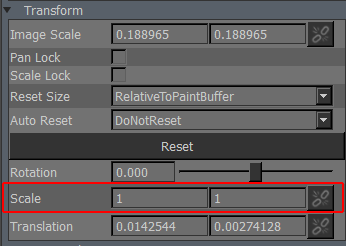
Open the 'Tool Properties' Palette and under the 'Transform' Group ensure 'Scale' is set to 1:1