Projection Options & Warnings


Extension Pack exposes the most common Projection Modes (found in the Painting Palette) as buttons and provides visual cues what mode you are in


Projection Modes

Extension Pack exposes the most common Projection Modes (found in the Painting Palette) as buttons, namely


Projection Mode (e.g. Front or Through)

Project Target (e.g. All or Selected Only)


By Default those buttons are added to the View Transform Toolbar at the bottom of the Mari UI


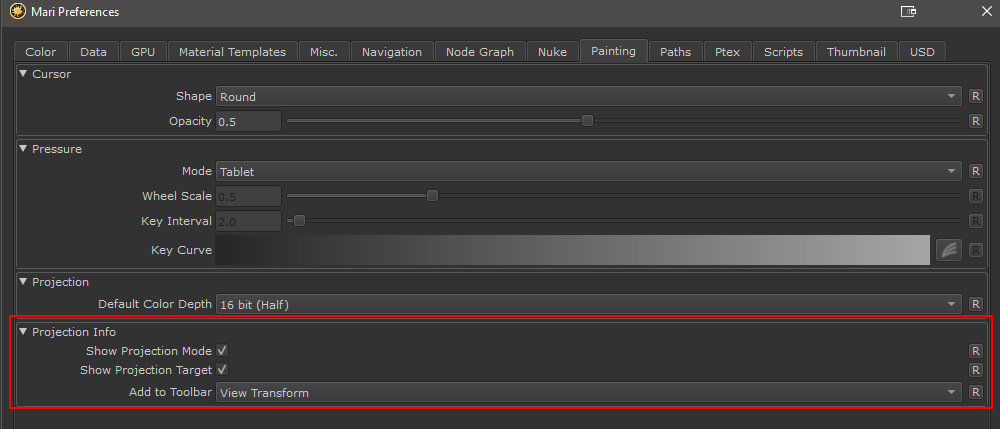
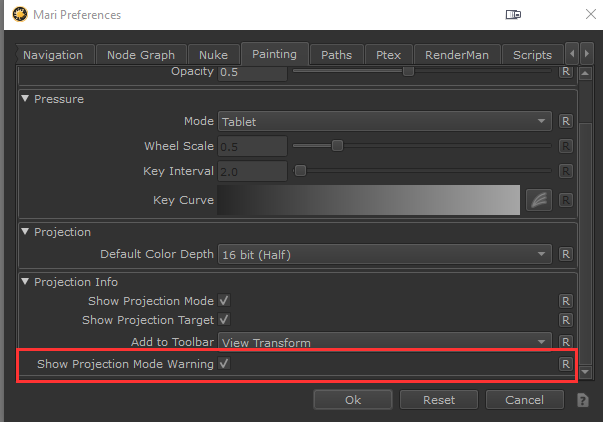
The Buttons can be configured in the Mari Preferences / Painting Tab.


Apart from activating or deactivating the display of specific or all Buttons you can also control which Toolbar the Buttons should appear under.


Adding the Buttons to the 'Projection (Custom)' Palette, allows you to freely move the buttons around in the interface


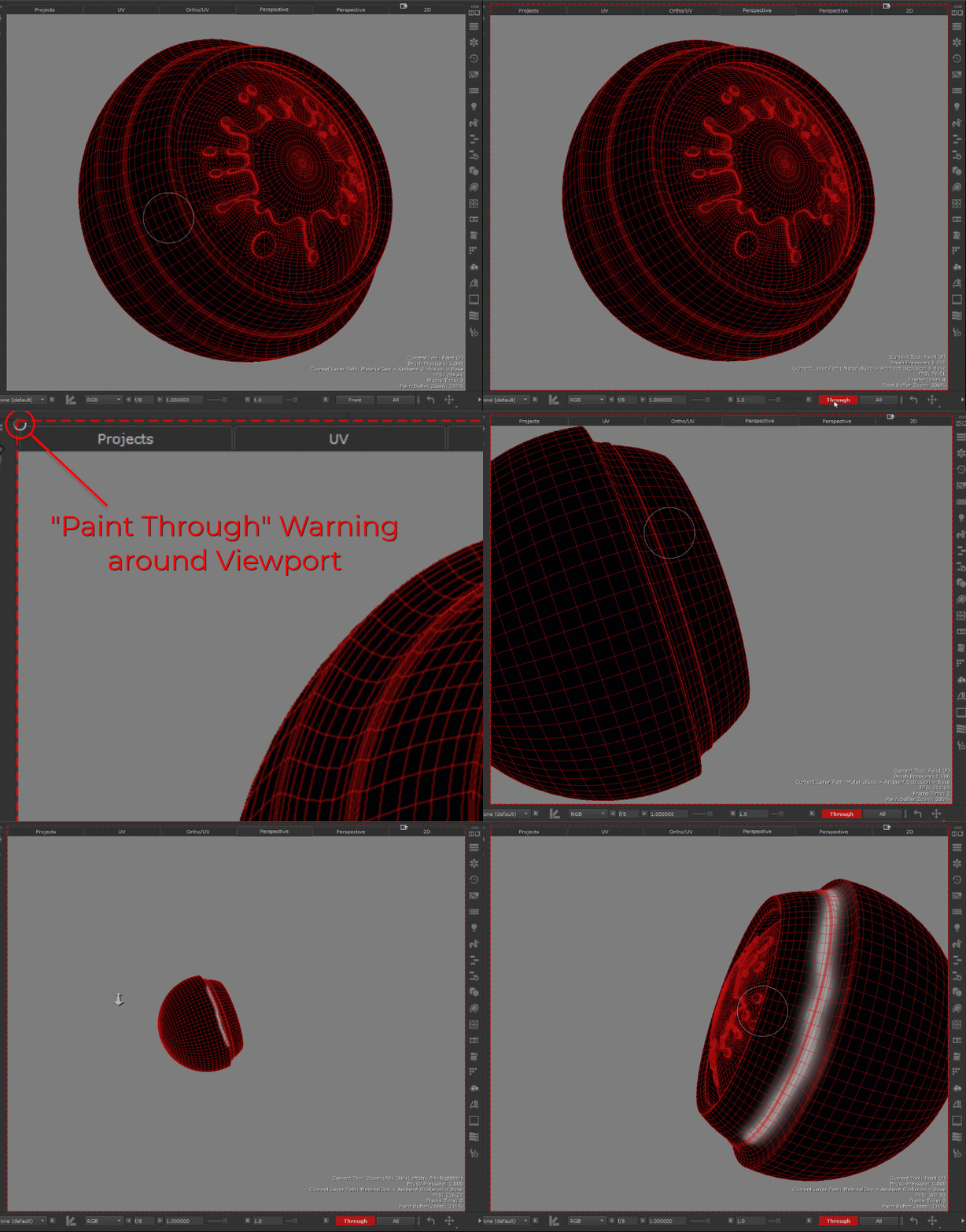
If you are in "paint through" mode, paint will traverse all the way to the back of the model, which can be destructive if you are not aware that the mode is turned on.

To always be aware when you are in "paint through" mode, you can turn on an optional warning outline around the viewport, 
This setting is off by default and needs to be turned on via the Mari Preferences (Edit/Preferences, within the Painting Tab)


You can activate the warning via the Preferences. It is off by default


Mesh Lock Warnings


Mari allows for many ways to prevent paint from being accidentally applied to protected areas. Users can lock channels, objects, selection groups and more.
Unfortunately this can lead to situations where parts of a mesh do not accept projected paint without it being obvious to the user why.

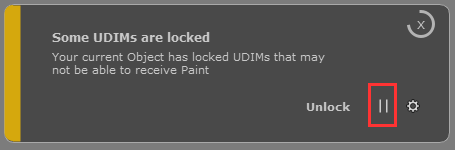
Extension Pack adds a Warning Notification to the Viewport if you are trying to project on an object that has parts of it locked.
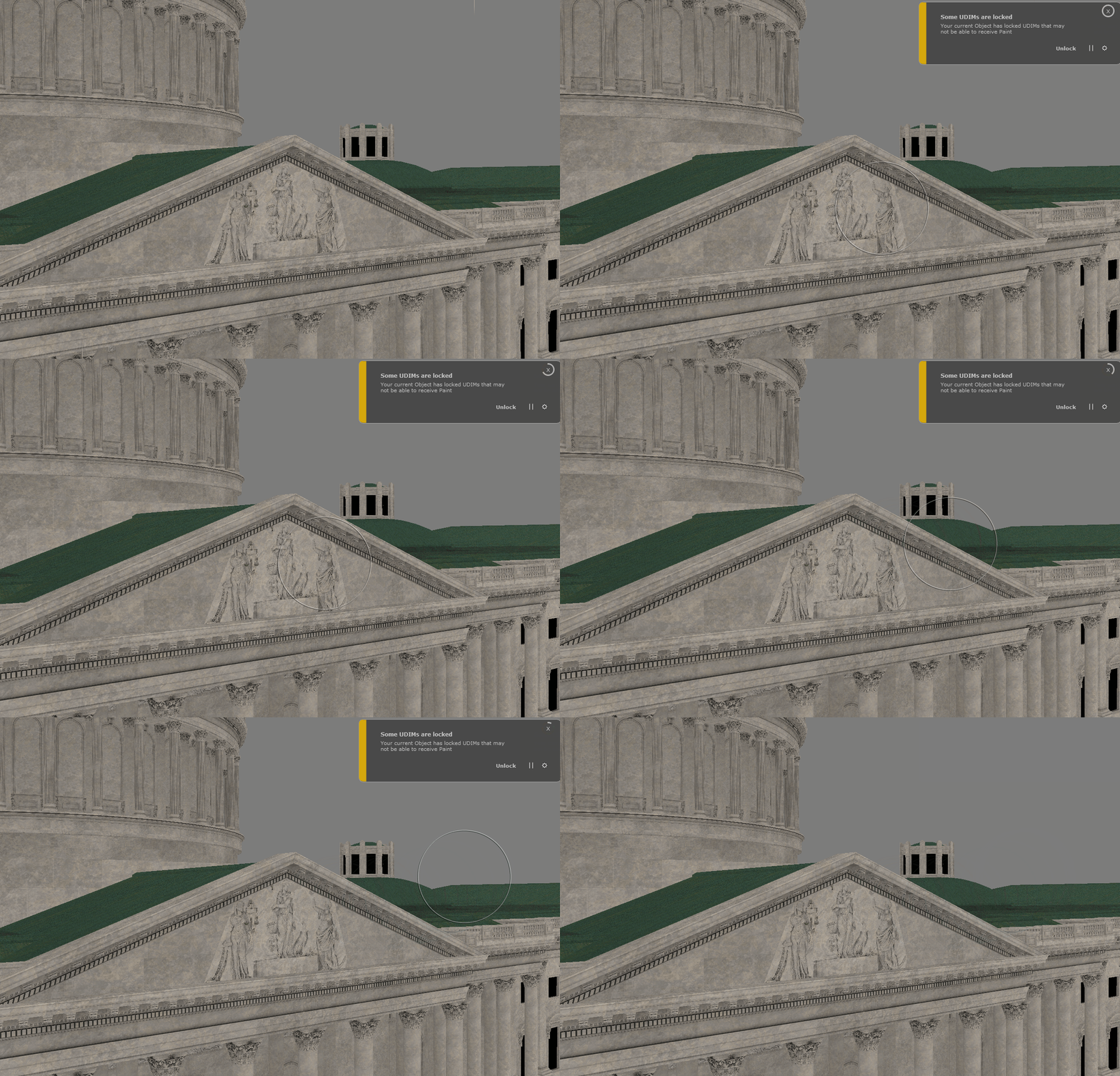


When baking the contents of the Paint Buffer, Extension Pack first checks if ..

No Object is selected

Current Object locked

Current Object contains Selection Groups that are locked

Current Object contains UDIMs that are locked

Current Object contains Layers locked

Current Object contains Channel that are locked


If any of those conditions are met, a notification will appear allowing you to Unlock whatever is locked

If you do not wish to see the notification, you can pause the notifications for the duration of your Mari session.  It will then be re-enabled after a Mari restart