Project Collections


Where to find it:


Mari Main Window / Projects Tab


Collections

Filters

Python API


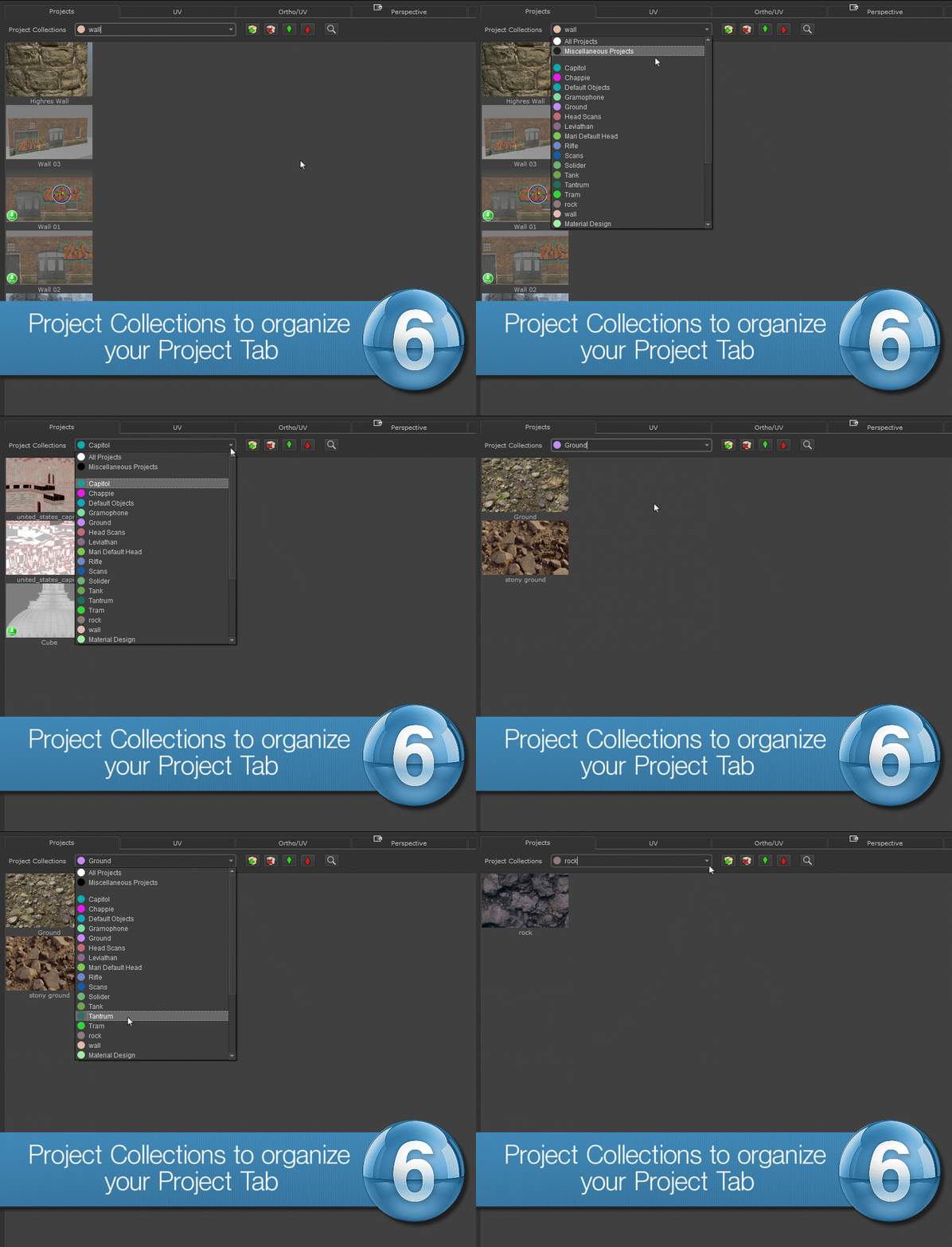
Extension Pack adds new options to Mari's main Projects Tab. At the top of the tab you have the option to sort your projects into collections to reduce clutter the project overview.

In addition to sorting projects into collections, you can now also filter the project tab using a Search Function.


Different from a "grouping" system, collections allow you to add a  Mari Project to multiple collections


Collections

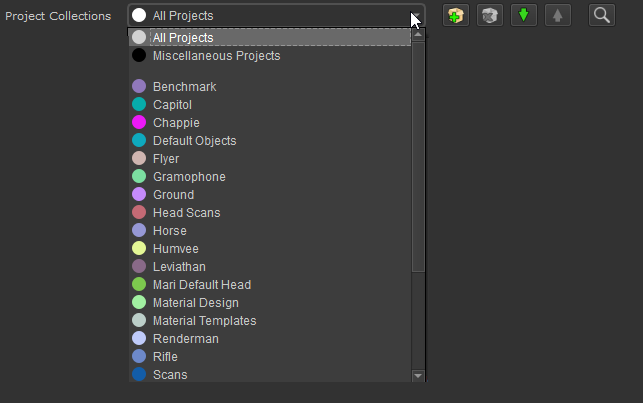
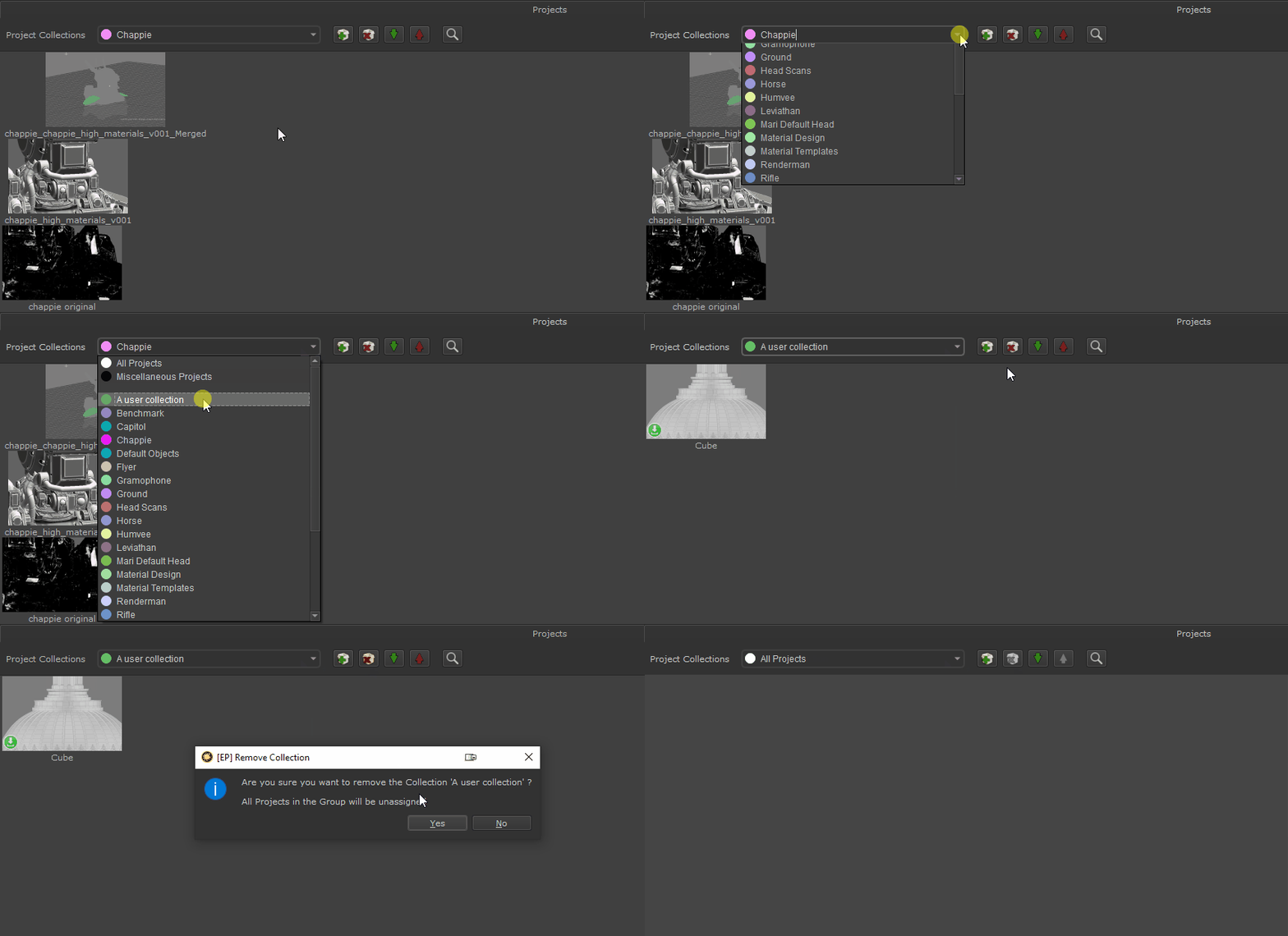
Even if you don't have any custom collections, you will always find two default collections in the Dropdown Menu at the top


All Projects will show all Mari Projects that currently are living in your Mari Projects Cache. This is the same as in a standard Mari without Extension Pack installed, where you always see all Projects

Miscellaneous Projects will show you all Projects that do not have a custom collection assigned. 


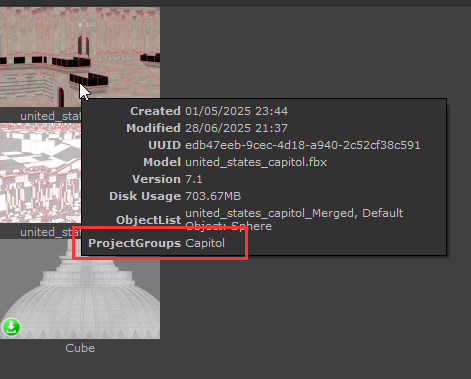
Collections are saved directly on the Project Metadata under the Entry "ProjectGroups"


To define the collection that should be active on Mari Startup, toggle the Pin Button next to the dropdown menu so it appears blue


Please note it is possible to hide the Pin button via the Mari "Preferences / .Misc / Project / Allow default Collection Pinning Option" and if you are working in a studio your Pipeline may enforce other standards.


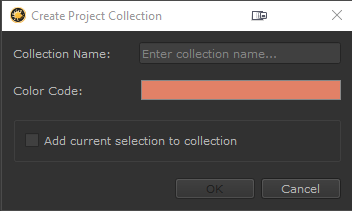
To create a new collection, click the green plus button


The dialog that opens allows you to specify a Name and Color code for the new collection. The Color code is defining the color displayed in the circle next to the name for easier visual identification.


A Collection name needs to be unique. If you create a new collection with the same name as an already existing one, all that will happen is that the already existing one will be updated with the newly defined color code.


The Add current selection to collection is a convenience option to add any selected Mari project to the newly created collection.


To remove a collection, choose the collection from the dropdown menu and click the red x button. All projects already assigned to the collection will get their assignment removed.


Empty Collections will be automatically removed on each Mari restart


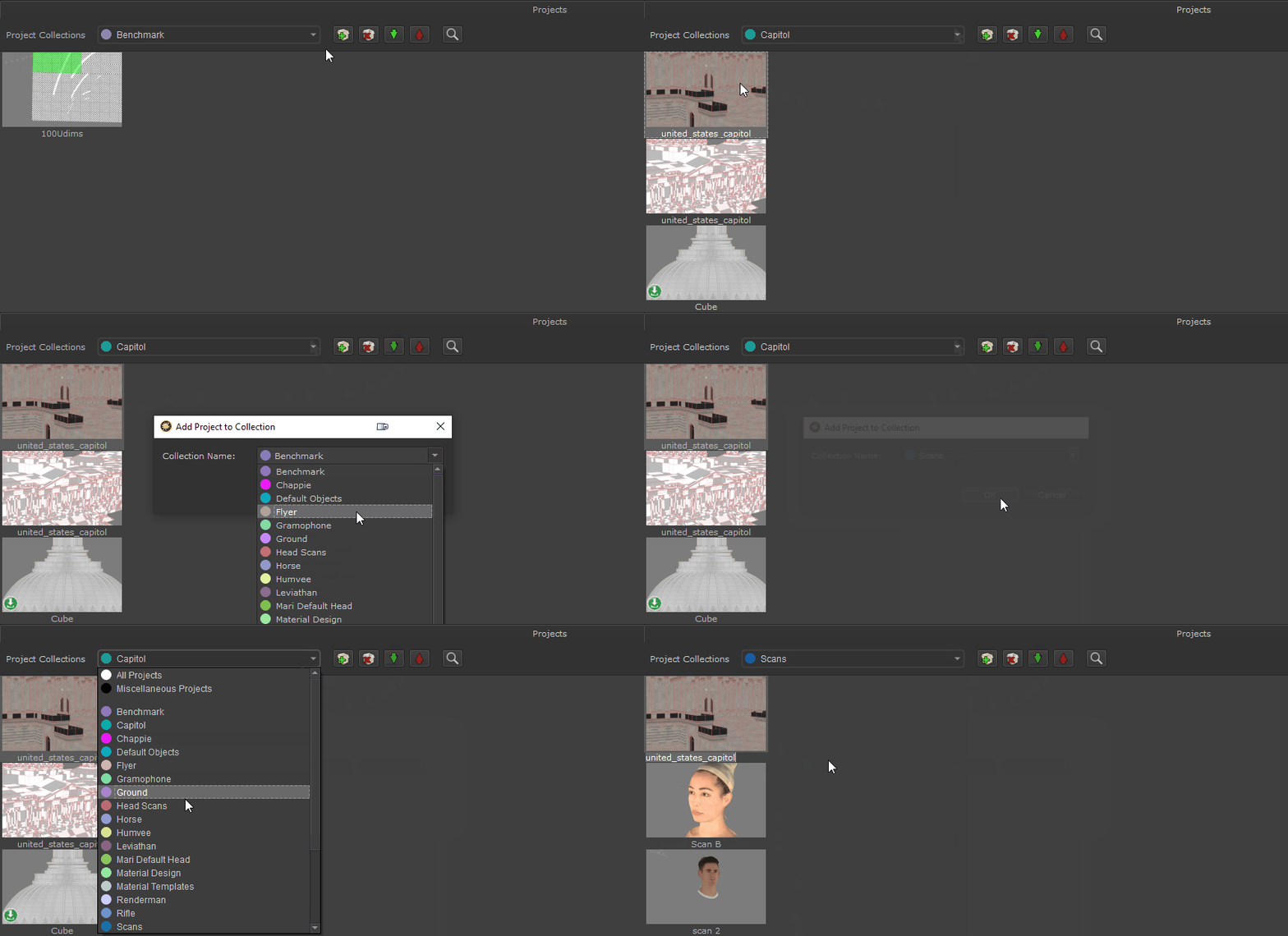
To add a project to a collection, locate the project in an existing collection (or "All Projects"), then click the green arrow down button and choose the collection you wish to add the project to.


TIPS


Projects can belong to multiple collections simultaneously

Projects not belonging to any custom collection, are listed in the "Miscellaneous Projects" collection

Adding and removing projects from and to collections also works with multiple projects selected.


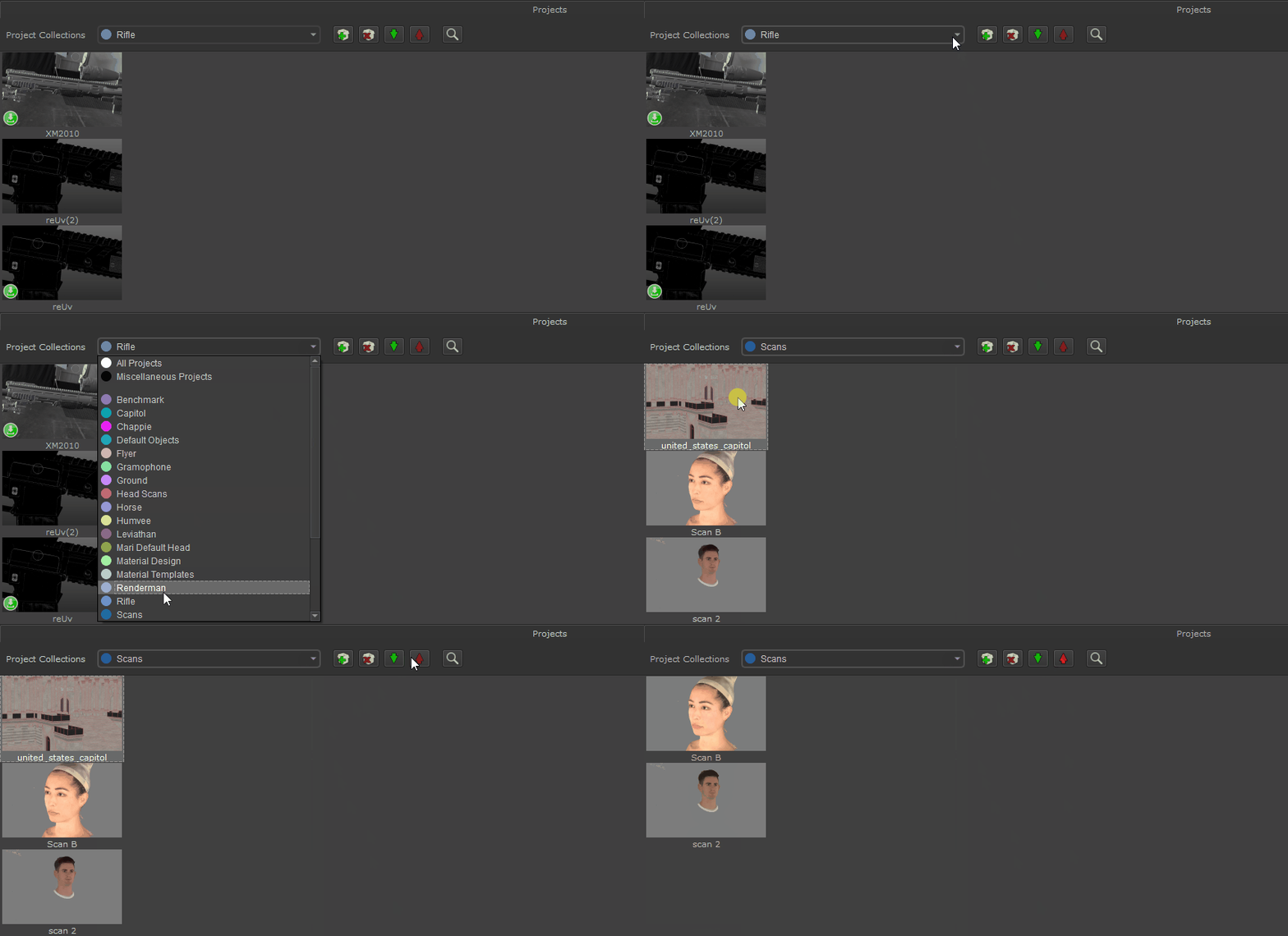
To remove a project from a collection, open the collection via the dropdown menu, select the project you wish to remove from it and click the red arrow down button


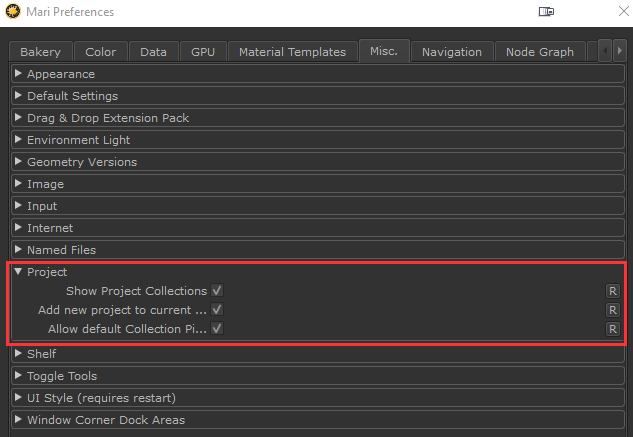
A number of preferences are exposed in the Mari Preferences /Misc./ Tab for the Collections UI Widget:


Show Project collections allows you to hide the Project Collections widget from the UI and work with Mari's default Projects Tab

Add new project to current collection defines if a newly created project automatically gets added to the currently set collection

Allow default collection pinning defines if the "Pin as default Collection" UI element is visible or not


Filters

Filters allow you to search within a collection (or "All Projects") based on Project Names and Project Properties (Metadata).
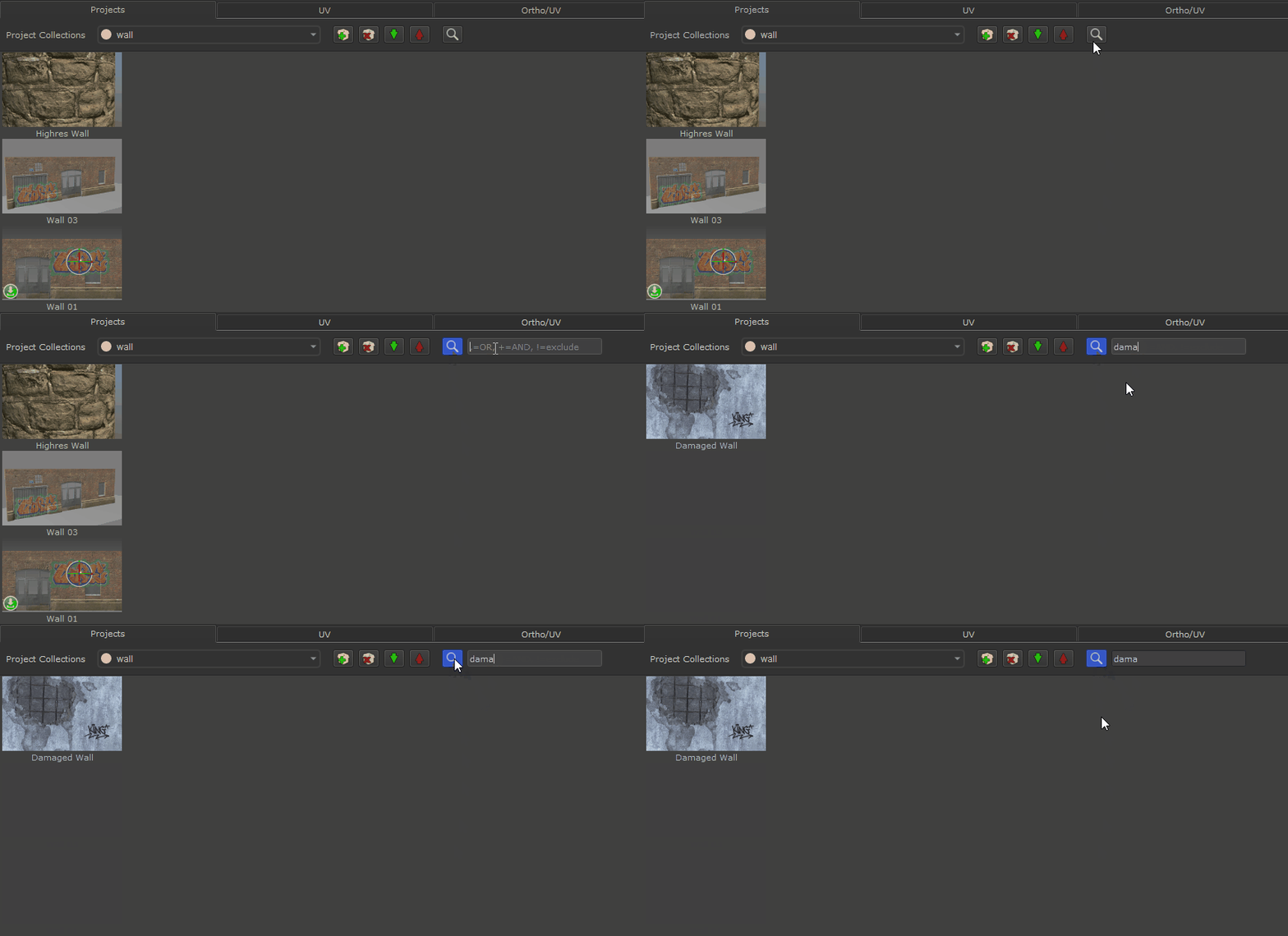
Filtering works within the the currently active collection.  To activate the filtering, press the Magnifier Glass icon. Press it again to toggle filtering off.


The Filter field supports basic expressions to fine tune your search results


Use "," (comma) for OR, "+" for AND, "!" for EXCLUDE. For example:

ProjectA,ProjectB - will display any project matches that contain either "ProjectA" or "ProjectB" in their Project Name. The search is case-insensitive. 

Project+Final - will display any project matches that contain both "Project" and "Final" in their Project Name. The search is case-insensitive.

Project+!Draft - will display any project matches that contain "Project" in their name but do not contain "Draft". The search is case-insensitive


By default the filtering works based on project names e.g. "wall" will display any project that has "wall" somewhere in its name. 
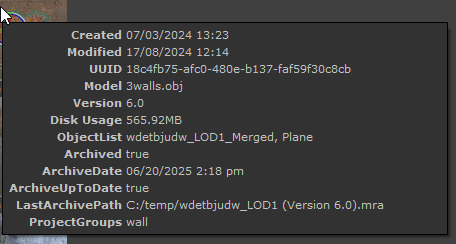
In addition to name searches you can also search through a projects metadata. A lot of metadata is displayed already in the Project tooltip (though not all):


Example of different project metadata listed in the project's tooltip


If you wish to filter based on project metadata, you need to prefix the search term with a "$" (dollar) sign.

You have two options to search:


Search based on any metadata name:

To search all metadata entries for a specific value simply add the value to search for prefixed by a "$"

- "$LOD1" in the screenshot above would search through all Metadata entries and find "LOD1" in the "ObjectList"

Search based on specific metadata names:

To search through a specific metadata entry for a matching value you define the name of the metadata first, then the value to search for separated by a ":"

- "$Version: 6" will search in the Metadata called "Version" for a value "6"

- "$Archived: true" will search in the Metadata called "Archives" for a value "true"


Python API

The Project Collections widget comes with extensive Python API to allow studios to automatically create and manage collections.

Please refer to the "mari.ep.projectCollections()" class in the Python Documentation for more information.