
|
Material ID from Selection Groups |
 Where to find it:
 Selection Groups Palette /
Main Window / Extension Pack / Selection Groups /
Shortcut: (unassigned, use "Edit / Shortcuts" to assign)

 How to use Material IDs in Mari
 Use previous ID when available
 ID Color Overrides Additional Options
Material ID Channel from Selection Groups allows you to create a a new channel with a unique
color fill for each selected selection groups. All selection group types (object, patch, faces) are supported
Material ID Channels are a useful way to have a single channel for multiple material masks.
Optionally the tool allows you to create individual mask layers from each selection group.
create a 'Color to mask' Adjustment Layer and pick the ID Color
create a 'Color Range to mask' Adjustment Layer and pick the ID Color(s)
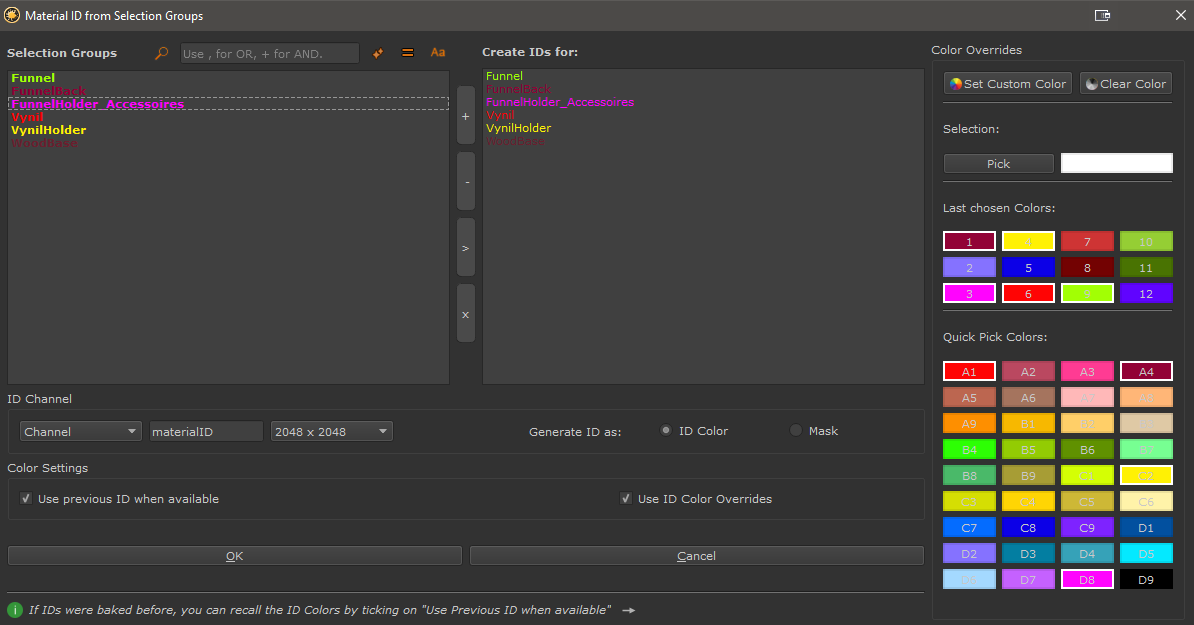
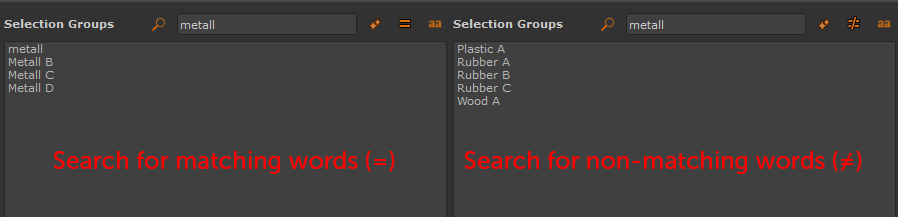
Filtering options at the top of the dialog allow you do search through the left side list of Selection Groups
•Deactivate the filter by clicking on the Magnifying Glass

•Search for multiple words using the OR operator by separating them with a comma (,)
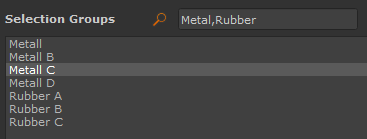
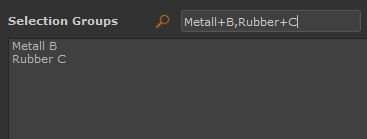
•Specify word groups using the AND operator by adding a plus (+)
•Clear the filter field quickly by pressing the Clear Filter Button

•Search in Case Sensitive or Insensitive Mode by clicking on the Aa / aa Icon
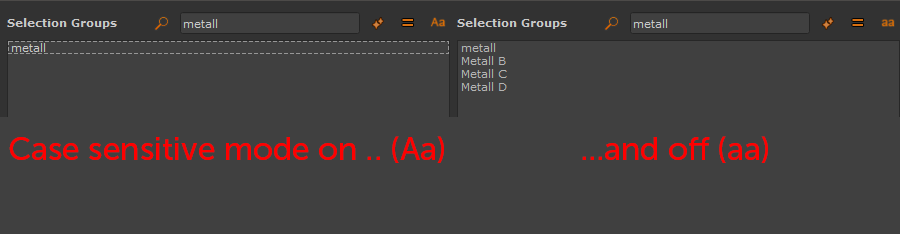
•Search for matching or non matching words

oChannel
When the dropdown is set to 'Channel', the Material IDs will be created inside a standard Mari Channel
named as per the name in the field next to it (in the above screenshot the channel will be called 'materialID'.)
If the name of the channel already exists on an object, selected selection group IDs will be added to the existing one
oGeo Channel
When the dropdown is set to 'Geo Channel', the Material IDs will be created inside a Geo Channel, named as per
the name in the field next to it (in the above screenshot the geo channel will be called 'materialID').
If a geo channel already exists on an object, the geo channel will be overwritten
|
|
LEAVING CHANNEL NAME EMPTY |
The resolution of the 'Material ID' Channel to create if the Name entered does not exist already
 ID Color
Will create a colored ID layer in the specified Channel or Geo Channel
 Mask
Mask
Will create one black/white mask layer per Selection Group in the specified Channel.
If Geo Channels are used, one Geo Channel per Mask will be created.
The geo channel name will be suffixes with the Selection Set Name (e.g. 'materialID_SelectionSetName')
•Use previous ID when available
If a Selection Group has been baked previously, this will automatically reuse the previously baked color as ID Color on the new bake.
This is useful in case a selection group has been updated with new faces to quickly apply the previous color to the new faces.
If a Selection Group has previous Color Information, the Selection Group Name will be highlighted in the color that will be used for baking.
With this Option turned on, Baking ID Maps will respect custom ID Colors selected by the user
Overrides can be set via the ID Color Overrides or the Selection Group Right Mouse Click Menu

ID Overrides allow the user to specify a custom ID Color for the selected Selection Groups.
Similar Functionality is also available via the right mouse click menu in the Selection Group Palette.
•Set Custom Color
Let's the user choose a custom color for the selected Selection Groups (in either left or right list) that will be used as their ID Color.
•Clear Color

Removes a user chosen Color from the selected Selection Groups (in either left or right list) and returns them to a random color unless
Use Previous ID Color option is on
•Pick Color from Selection
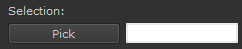
Let's the user sample the current color from the selected Selection Group (in either left or right list) by clicking on the PICK Button. If multiple items are selected the last
chosen color is sampled.
You can then assign the sampled color to other selection groups by clicking on the color swatch.
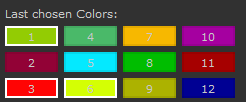
•Last chosen Colors

Let's the user assign colors to selected Selection Groups (in either left or right list) by clicking on a swatch,
The list displays the last 12 used colors either from the Color quick pick list, the custom color chosen or the picked color from a selection.
The list is saved and restored on reopen per project.
•Quick Pick Colors
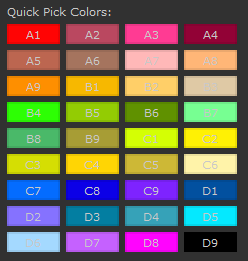
Let's the user assign colors to selected Selection Groups (in either left or right list) by clicking on a swatch.
The list displays a selection of standard colors.
|
ID Color Overrides - Additional Options |
The Color Swatches in the Selection, Last Chosen Colors and Quick Pick Colors provide helpful tools to manage your color assignments.
 Color Swatches that are in use are marked with a white outline
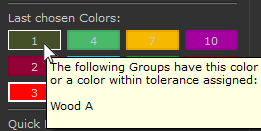
Hovering your cursor over a color swatch displays the Groups that are assigned to this color
Right Mouse Clicking on a swatch allows you to
•select all Groups with this color assigned
•filter the left list for all Groups with this color assigned
