Shelf Drag & Drop  Actions


Where to find it:


Shelf Palette

Image Manager Palette


Switching Brushes

Node/Layer from Image

Node/Layer from Color Swatch

Tool Switching

Environment Light Switching

Dynamic Nodegraph from Materials

Preferences


Extension Pack extends Mari's Drag and Drop options from the shelf with various options:


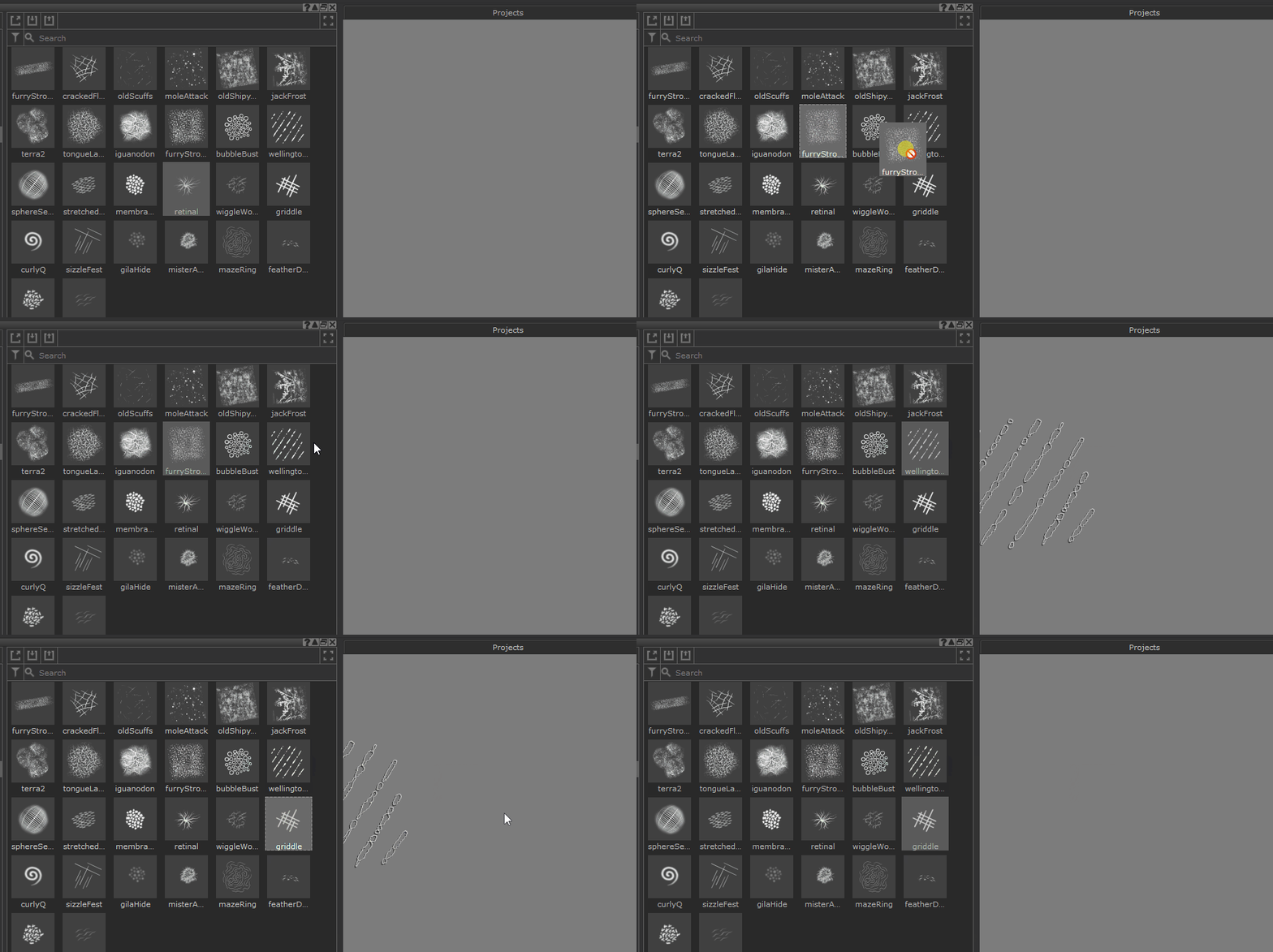
Mari's default behavior to activate a brush stored in the Shelf is to double click on it


Extension Pack extends this behavior to also allow dragging a brush to the viewport to switch to it


Drag & dropping an Image from the Shelf or Image Manager into the Nodegraph or Layerstack, will  let you choose which node to use the image in.

To make it a quick process for common nodes, the most used ones are mapped to quick access Hotkeys (Number Keys 1,2,3,4 etc.)


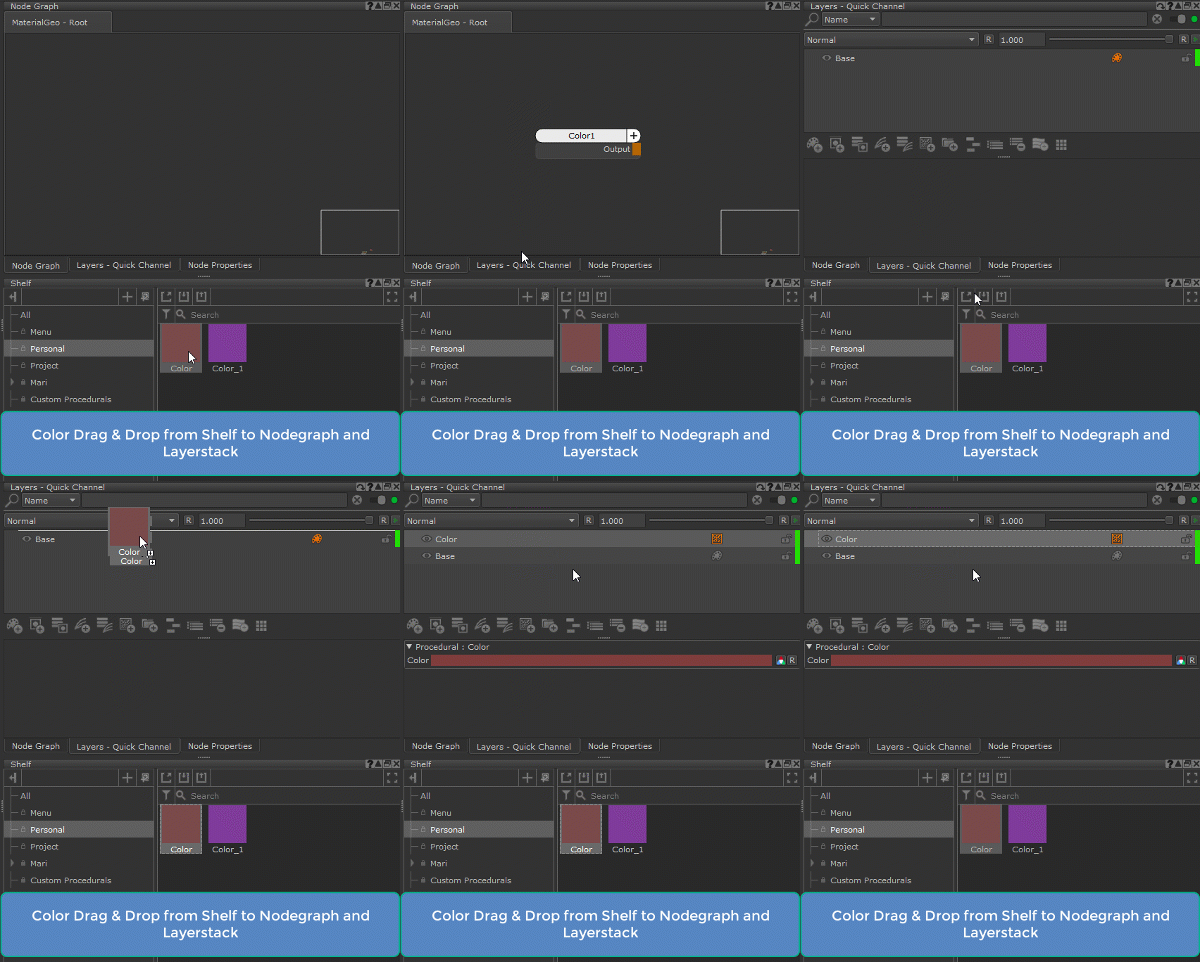
Dragging a Color Swatch from the Shelf into the Nodegraph or Layerstack will automatically create a Color Node/Layer for you.


Dragging an image from the Shelf to the Mari Canvas will automatically switch to the Paint Through Tool and set the dragged image as the

Projection Image. While Mari by default sets the  Projection image with this action, without Extension pack it will not auto-activate the Paint Through Tool


Dragging a .exr or .hdr file from the Shelf to the Mari Canvas will allow you to select its usage:


As Paint Through Image

As Environment Light


If using it as an Environment Light, it will replace your current Environment Light.

If the Environment Light is turned off, it will turn out automatically.


The pop up will only appear if your current Tool is not the Paint Through Tool


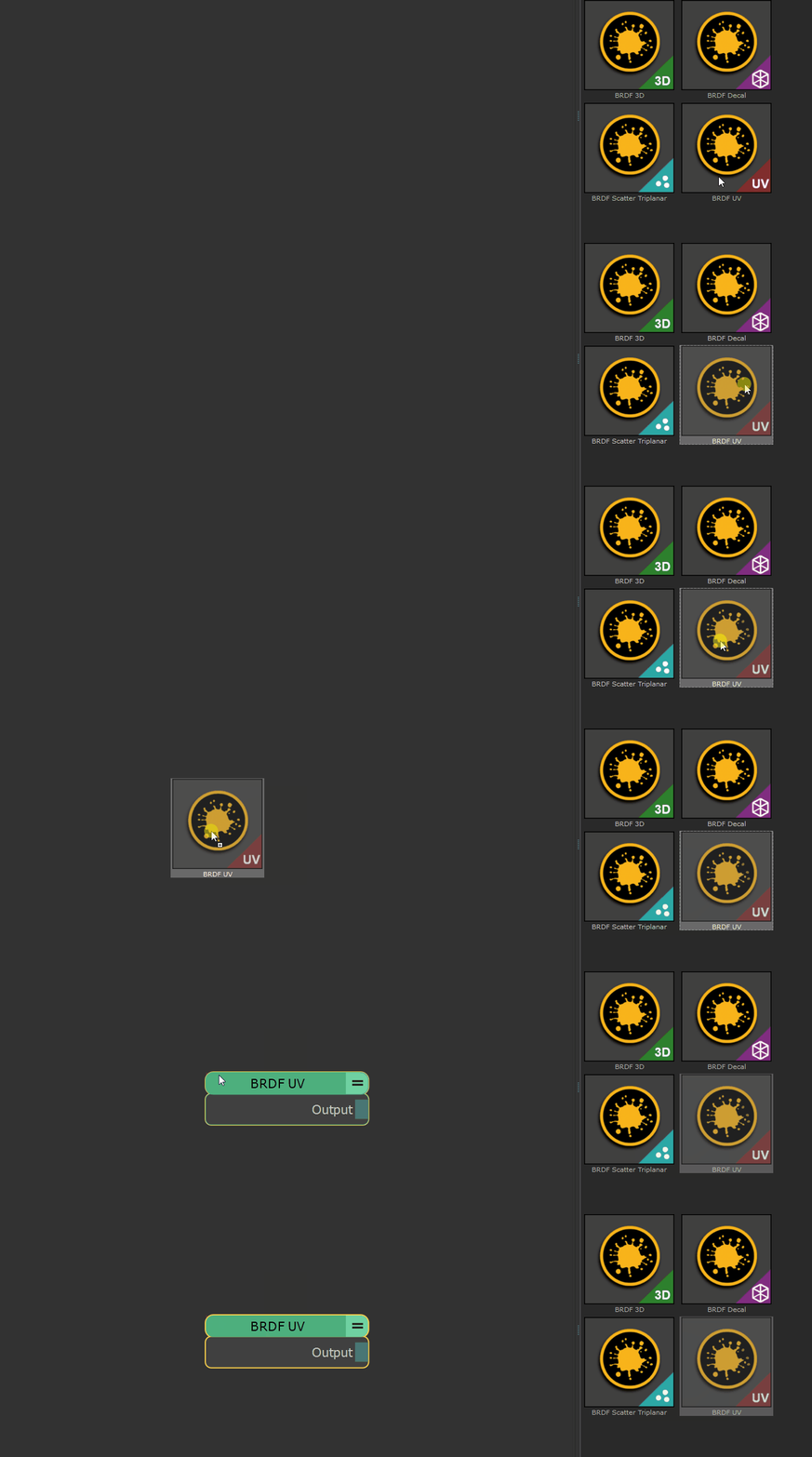
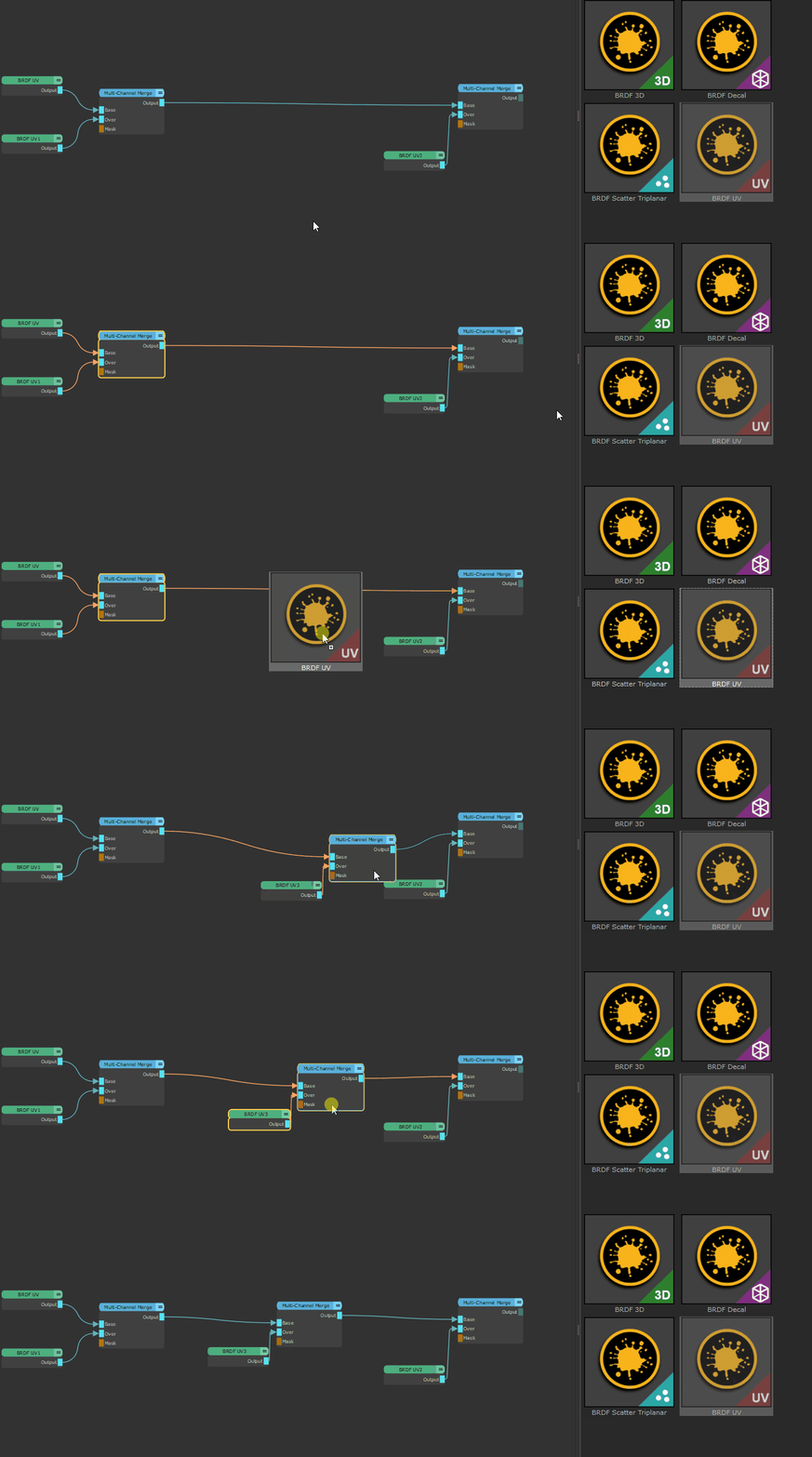
Drag & Drop of Materials from Mari's Shelf into the Nodegraph has been extended with context aware behavior

If you have no node or a non-multi-channel node selected, the behavior remains unchanged and the material will be created at the drop position


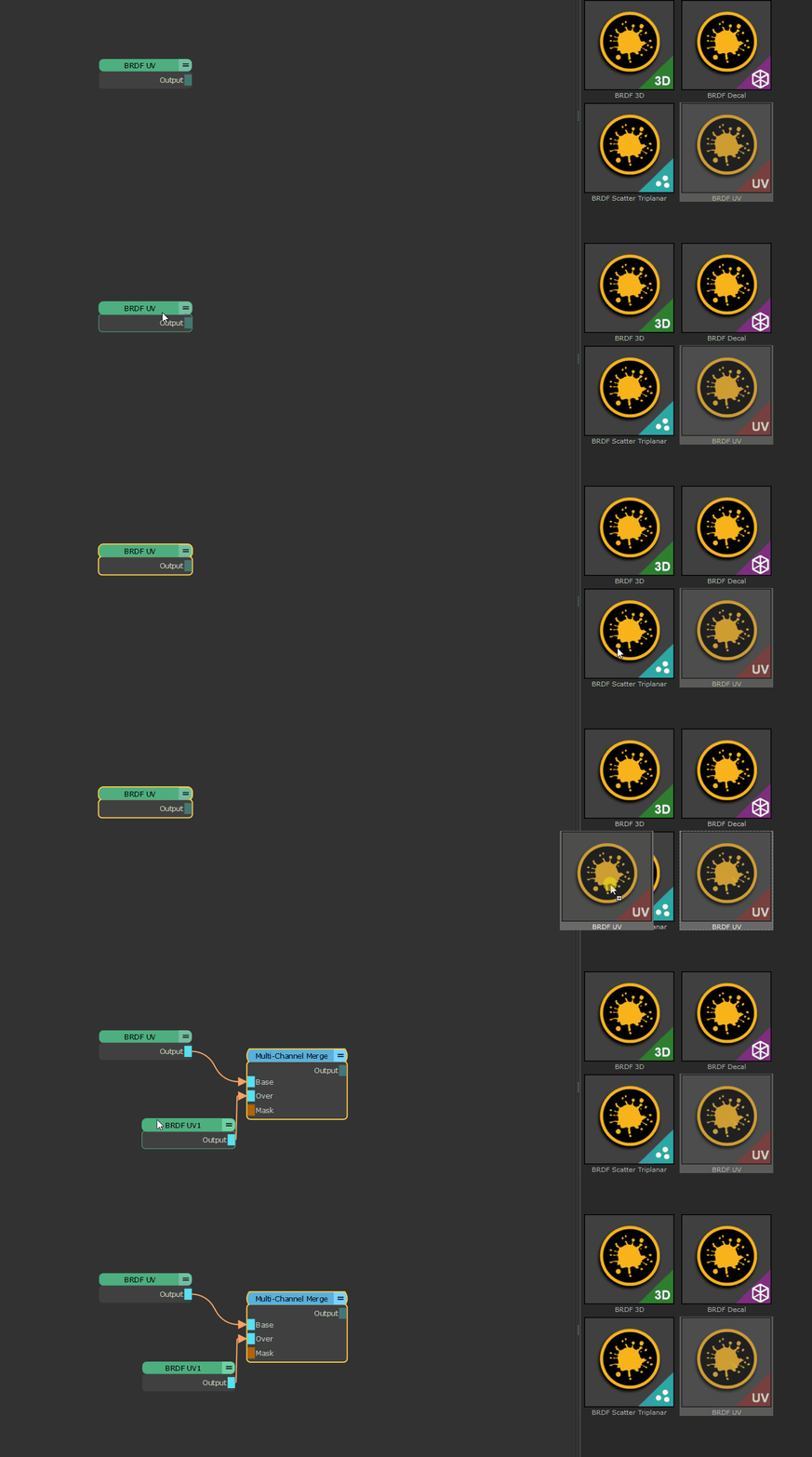
If you have a single Multi Channel Node selected (e.g. Material) a new multi channel Merge Node will be created and the old and new nodes will be merged


If you have a Multi Channel Merge Node with an open Input (Base or Over) selected, the new Material will be auto connected


If you have a Multi Channel Merge node without an open Input selected, a new Multi Channel Merge node will be auto created


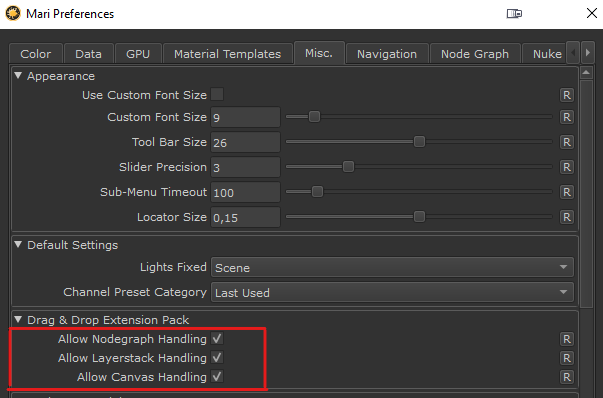
All the different behavior shown above can be disabled via the Allow Drag & Drop Handling in the Misc Tab of the Mari Preferences.

If off, Extension Pack will not handle the associated drag & drop events.