|
Auto Reload Image(s) |
 Where to find it:
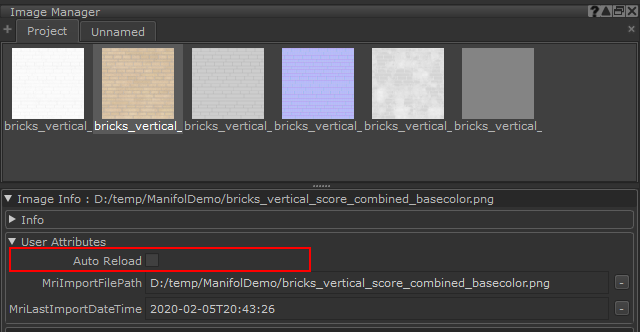
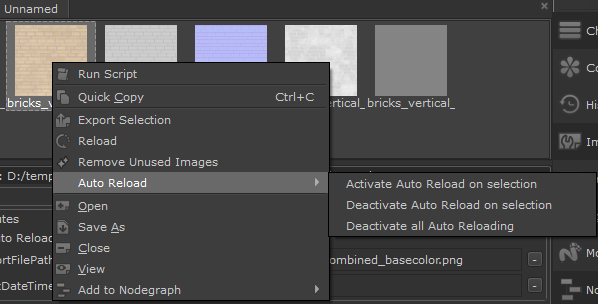
 Image Manager Palette / Right Mouse Click on Image / Reload /
 Image Manager / Per Image Info Panel / Reload /
Shortcut: (unassigned, use "Edit / Shortcuts" to assign)

Images in the Image Manager can now be set to 'Auto Reload' if the Source File on Disc changes.
Once activated, if there already is a change on disc, the selected files will automatically reload instantly.
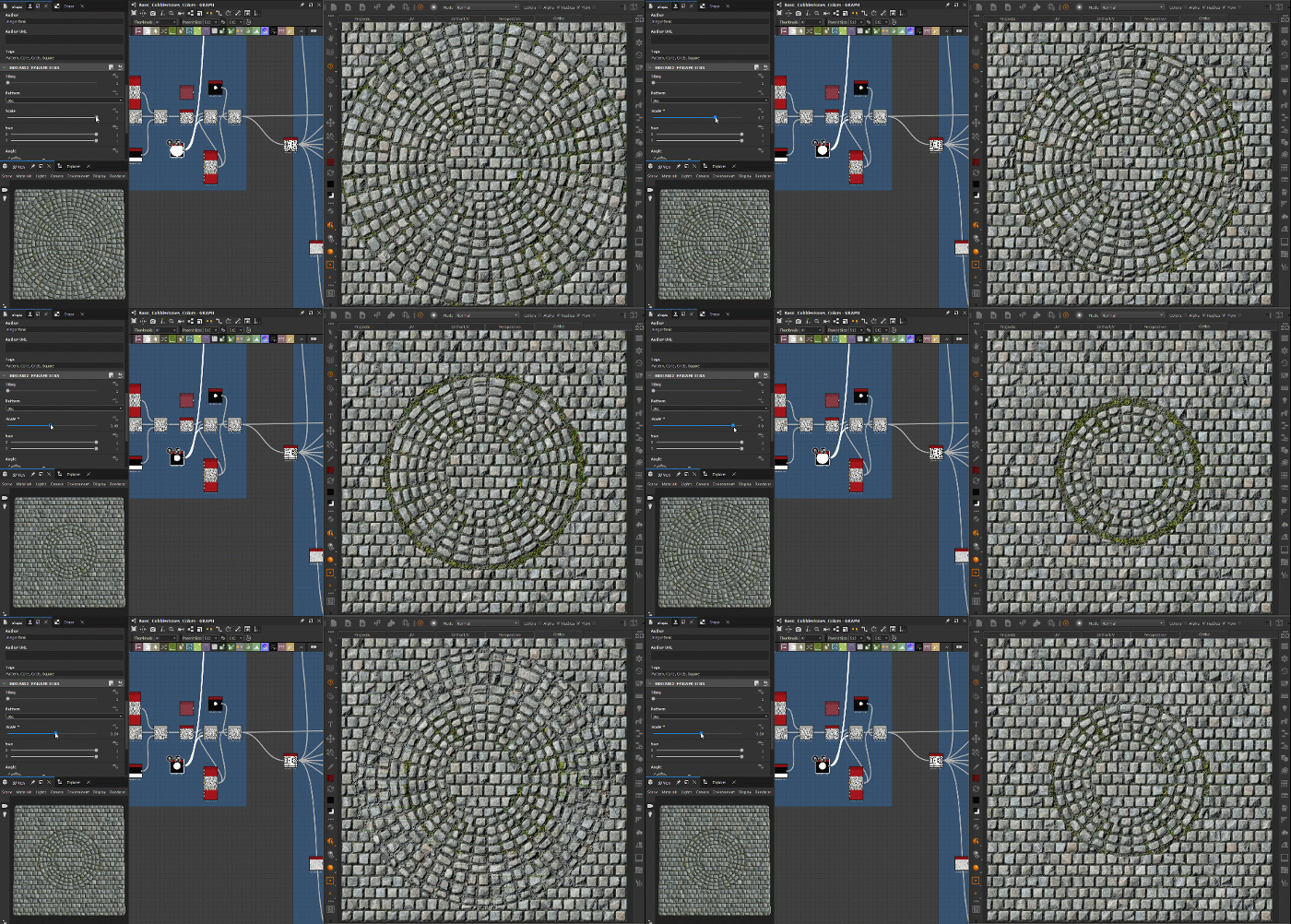
An Example of live streaming changes made to a material in Substance Designer (left) into Mari (right)