Multi Channel Node Optimizer


Where to find them: 


NodeGraph / Right Mouse Click / Misc / Optimize


Main Window / Extension Pack / Nodegraph / Misc / Optimize


Shortcut (Nodegraph Only - requires shader node selection): CTRL+ALT+SHIFT+O

Shortcut (Nodegraph Only - requires shader node selection): CTRL+SPACE


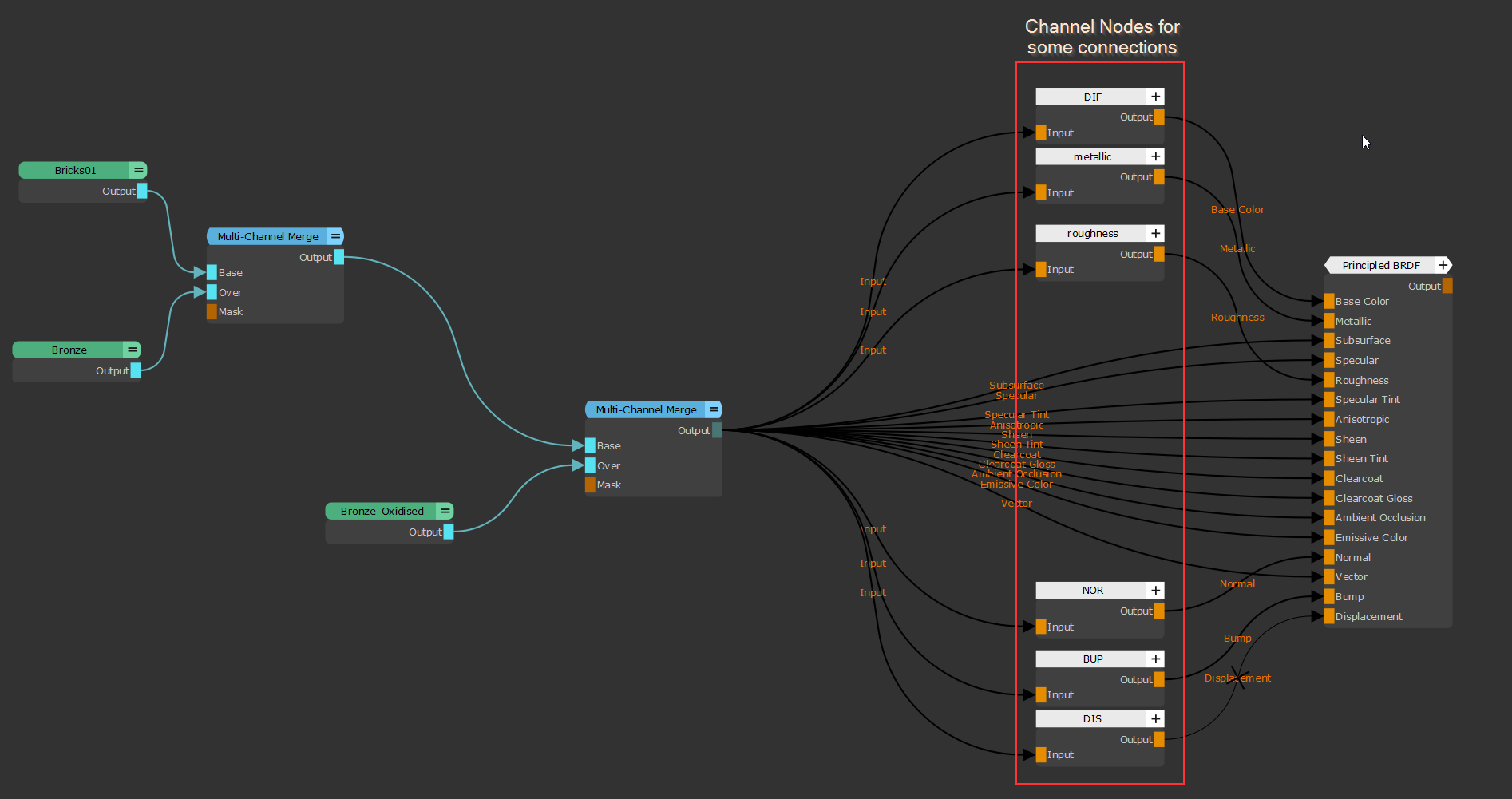
The  Multi Channel Node Optimizer improves your Viewport Performance by removing connections from Multi Channel Nodes (Materials, Multi Channel Merge Nodes and Bake Points) that are not in use on the connected shader.  What is in use is determined by the presence of channel nodes.

Running a Multi Channel Node Optimizer can improve Viewport Performance on nodegraphs with many nodes and materials.
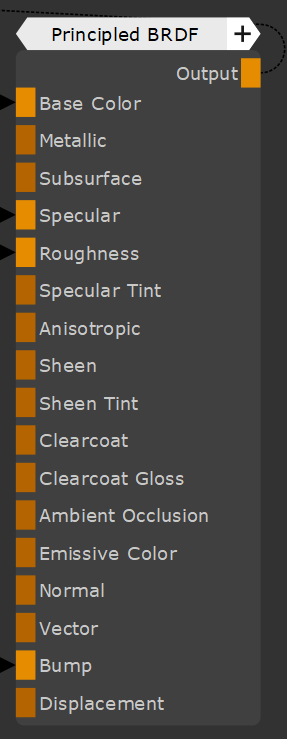

Mari Materials are tied to so called "Shader Models" - for example an "Arnold Standard Surface" Shader Model.
A shader has a fixed amount of Input Ports as can be seen below: The Principled BRDF has a total of 17 Input ports


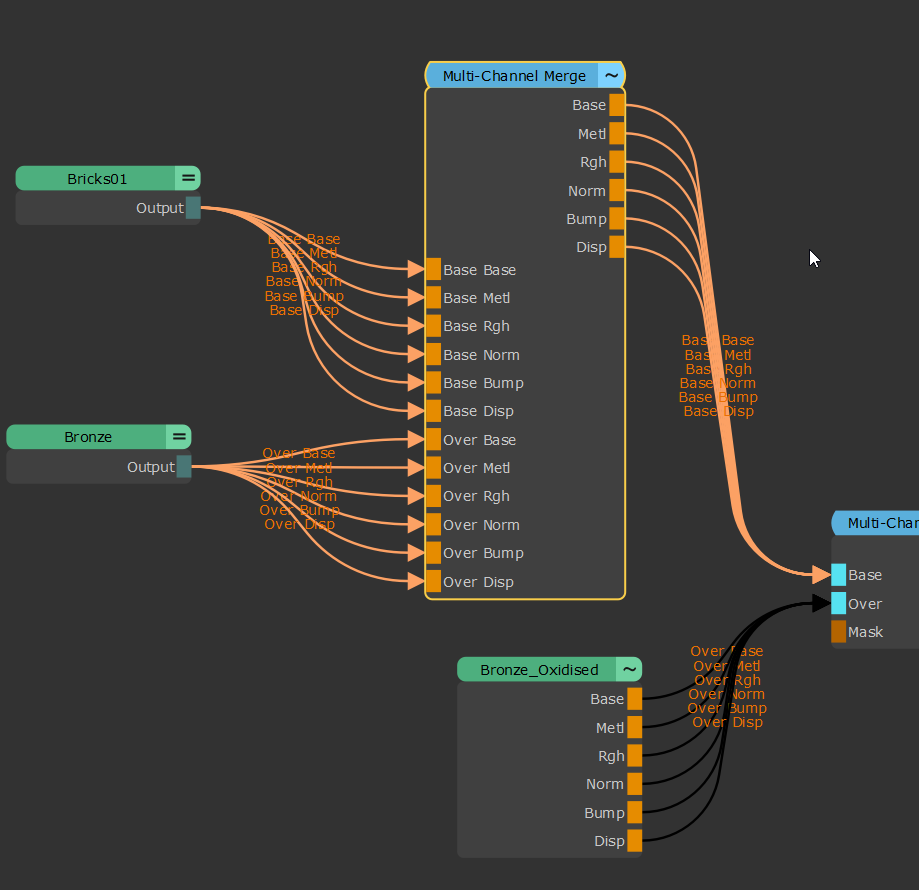
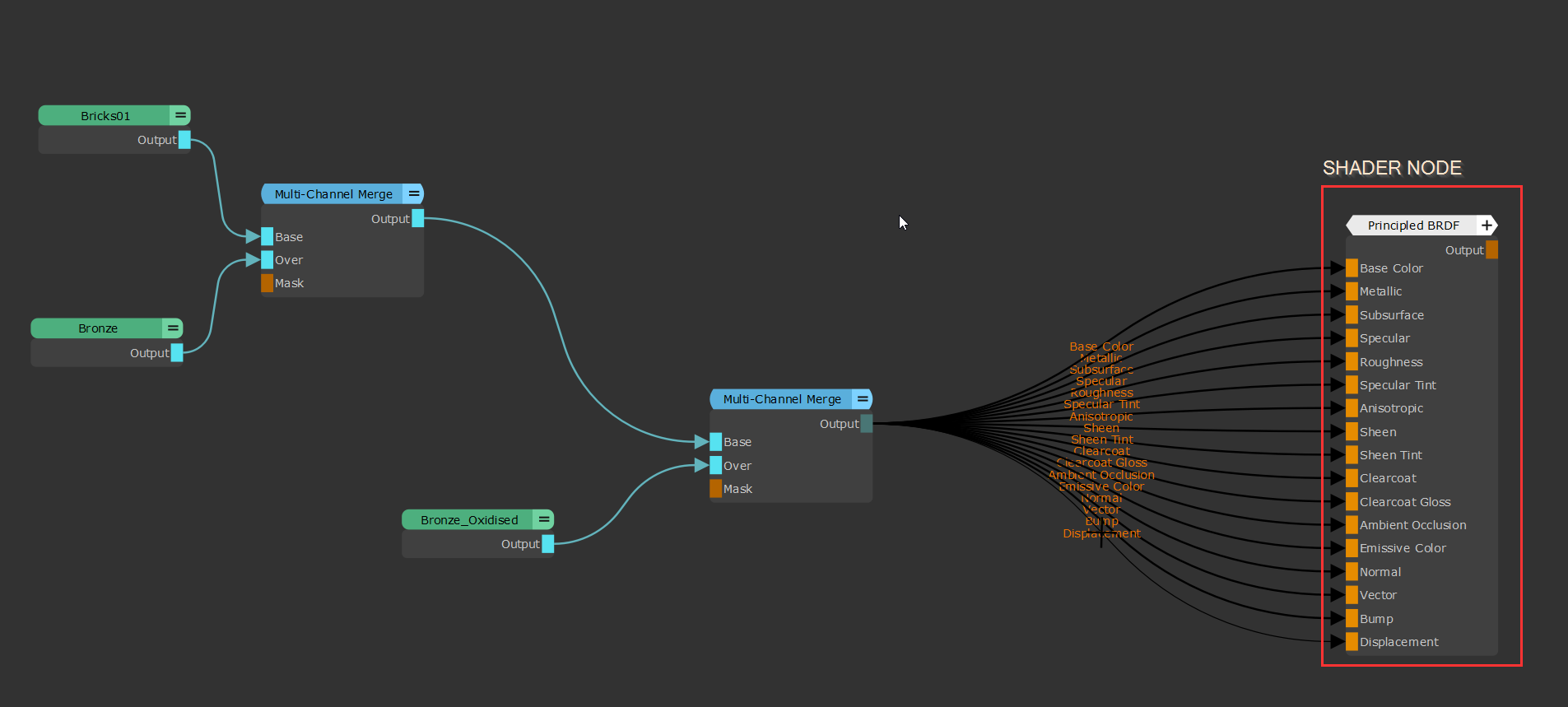
Whenever you create a Material, Multi-Channel Paint Node, Multi Channel Merge Node or Multi Channel Bake Point the new Node gets created with the same amount of inputs (for Multi Channel Merges and Bake Points) and Outputs.


Below you can see an example of a Multi Channel Merge node for the "Principled BRDF" shader. It has a total of 17 output ports, and 34 Input Ports (17 for "Base" and 17 for "Over")


A lot of Shader Inputs are only used for special cases. E.g. on a Hardsurface Model, Subsurface related Inputs will not be used, Clear Coat might not be used etc. On most assets you will only use a small percentage of the exposed inputs.
Unfortunately viewing the shader or viewing a multi channel node still evaluates all possible connections, resulting in much higher computational expense and lower Frames per second in the viewport.


The Multi Channel Optimizer solves this issue by force disconnecting any connection that is not in use by the attached shader. What is in use is determined by attached "Channel" Nodes on the shader


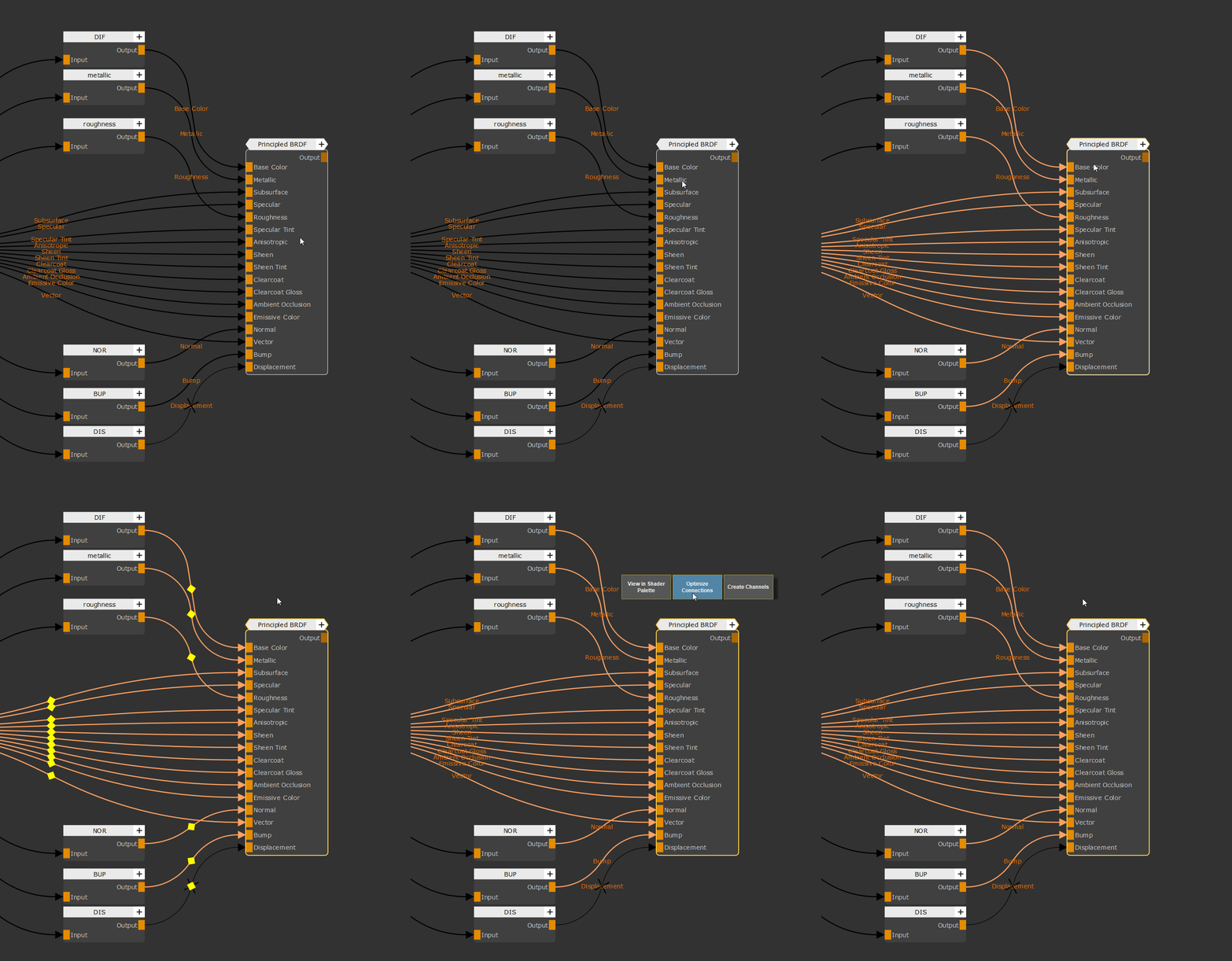
1.Ensure you Node Network has a Shader Node (e.g. "Arnold Standard Surface" or similar) attached at its end.


2.Ensure that any connections you wish to keep have a "Channel" Node attached to the shader


3.Select the Shader Node

4.Choose the "Multi Channel Node Optimizer" from the Right Mouse Click Menu (/Misc/Optimize) or press Hotkey CTRL+SPACE to bring up the Node Context Menu of the Shader and choose the "Optimize Connection" Option


5.While at first glance nothing will have changed, inspecting your Multi Channel Connections will reveal the change. Only connections with active Channel Inputs have been maintained


6.The Multi Channel Node Optimizing process is non-destructive. Creating additional Channel Nodes and re running the Tool will automatically add the missing connetions back into all your Multi Channel Nodes


In addition to disconnecting non-used connections, Multi Channel Bake Points will automatically get non-active streams set to disabled to save unnecessary bakes


below you can find some viewport speed comparisons with and without the optimization on the example of an arnold standard surface shader


Multi Channel Nodes connected to Shader

Optimized

Culled Connections

Average Viewport FPS

5

NO

0 / 37

31

5

YES

30 / 37

62

11

NO

0 / 37

19

11

YES

30 / 37

27