|
Render Log |
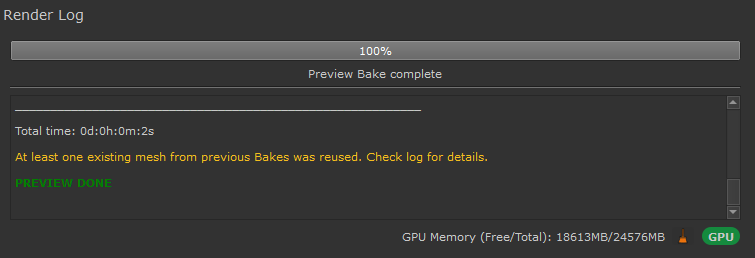
The Render log gives you information about the currently running process and any relevant information for your bakes.
At the bottom right are memory tools.
•Standard Progress Messages are marked in white
•Information Messages are marked in yellow
•Non-critical warnings are marked in orange
•Critical Warnings and errors are marked in red
•Log Entries directly from Substance, if Verbose Logging is turned on, are marked in purple
By default the Render Log displays a low level of verbosity (detail) of information.
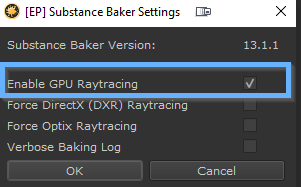
You can switch to a higher level of detail by changing the Setting in the Substance Config Dialog



At the bottom right, the baker bridge reports the currently available memory for baking - Video Card VRAM if in GPU Baking Mode, or System Memory (RAM) if in CPU Baking Mode.
If memory is running low, Log entries will warn you about it:


The Substance Bake Process ("SBSBaker") and Mari are separate processes, each with their own Memory Requirements.
If your GPU Memory is already low when the Substance Baker Bridge is launched, it will automatically try and clear memory:
This Auto-clearing only happens on the initial launch of the Baker Bridge Window.
To manually clear memory you can press the broom button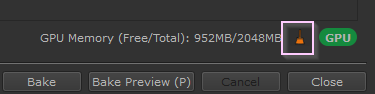
|
|
Clearing Memory is achieved by temporary lowering Mari's Memory Allocation in its Preferences to a bare minimum.
|
|
|
Switching to CPU Baking is no longer available when using Substance Baker Versions 15.x and higher |
By clicking on the CPU/GPU Button you can switch the Baking Mode. If the button displays "GPU" it means Baking happens on the Video Card. If the Button displays "CPU" it means Baking happens on the
System CPU. CPU Rendering is considerably slower however can be useful if you do not have enough GPU Memory (even after clearing) to bake an object.

Switching GPU/CPU Baking via the Button is the same as switching it via the Substance Config Dialog