
Selection Fill


Where to find it:


Add Procedural Layer / Geometry / Extension Pack /


NodeGraph / Right Mouse Click / Add Nodes / Geometry / Extension Pack /


Selection Fill will fill your current selection with the color specified in the node.

Your current selection is determined by Mari's Selection Mode, such as Object, Patches or Faces:
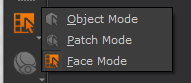


The node will update the selection continuously based on the current one until it is frozen' by choosing "Freeze Selection" inside the Node


Filling a selection on the fly, then holding shift to add selections together


Tutorial


Node Overview


Node Ports


•Output

Outputs the selection in the "Fill Color" specified inside the Node. If "Fill Unselected" is checked, the unselected parts will be filled with the "Unselected Color" of the Node


Node Properties


•Fill Color

The Color to fill the selection with


•Fill Unselected

If on, the unselected areas of the mesh will be filled with the "Unselected Color"


•Unselected Color

The color to fill unselected areas with, if "Fill Unselected" is activated


The node will continuously sample your current selection, until you "freeze" the selection.
Freezing a selection will bake the result of the node into a bake point so it doesn't update anymore with your selection.


•Resolution

The UDIM Resolution to freeze the mask at. Usually lower resolutions are fine given the nature of the mask (no gradients or complex pattern)


•Freeze Selection

Will create a Bake point after the Selection Fill Node at the specified Resolution and auto bake. This will freeze the Selection based on your current selection in the viewport


•Freeze from linked Group

Will freeze the Node Mask by creating a Bake point after the Selection Fill Node at the specified Resolution and auto bake. Other than "Freeze Selection" this will not use your current selection but first restore the selection specified from a Selection Group specified in the "Linked Group" section


•Unfreeze Selection

If a bake point exists after the node, the bake point will be removed


•Restore Selection

When a frozen Selection exists, this will restore the Selection inside the Viewport


The Selection Group sectiona allows you to link the Node to a specific Selection Group. Using "Freeze from linked Group" will then always use the associated group to generate a selection mask.


•Link to current Selection Group

Will set the currently selected Selection Group (in the Selection Group Palette) to the "Linked Group" Field


•Choose Selection Group

Opens a dialog to choose a Selection Group. Will then set the selected Selection Group (in the Selection Group Palette) to the "Linked Group" Field


•Linked Group

The Linked Group field is filled with an existing Selection Group Name. This can be done manually, via the "Link to current Selection Group" Button or the "Choose Selection Group" Button.


In addition to the Buttons inside the Node, a lot of the functionality is also exposed in a Node Context Menu for the node.

To open the Node context menu, select the "Selection Fill" Node and press CTRL+SPACE