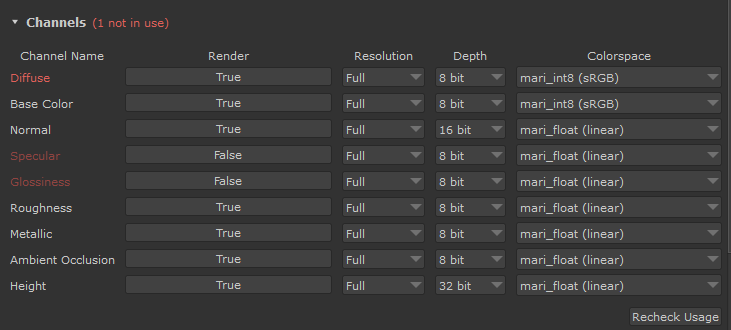
The Channels section of the Substance Palette controls which textures of a Substance get rendered, and at which resolution, bit depth and colorspace they come into Mari.
It also shows you which channels are rendered but not used anywhere in your scene.
Each row is one output of the Substance, e.g. Base Color, Normal or Roughness. Channels are the "Output Nodes" of the Substance graph, so changing the Graph in the Settings section will also refill this list.
Changing the Resolution, Depth or Colorspace of a channel only re-renders that one channel. All other channels stay as they are.
The color of a channel name tells you its state:
•White - the channel is rendered and something in your scene uses it
•Dark Red - the channel is not rendered (its Render is set to False)
•Bright Red - the channel is rendered, but nothing in your scene uses it
Bright red channels cost render time and disk space for nothing, so it's worth switching them off. Their number is shown in the section header, e.g. "(2 not in use)". Channels you switched off yourself are not counted.
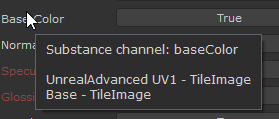
Hover over a channel name to see its Substance channel type and a list of every node that reads it.
"Usage" checks for
•Nodes and layers reading the channel's image
•Brush tips using the channel's image
•Multi-Channel Painting streams do not count. A channel that is only used through Multi-Channel Painting stays bright red
The usage check runs when a Substance is loaded and when you change a Render setting.
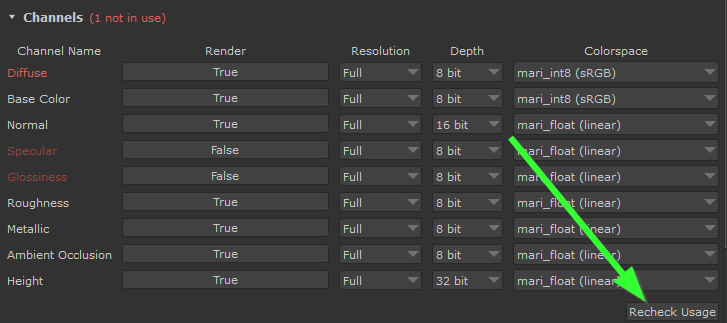
It doesn't run all the time. If you have just connected a channel somewhere in Mari, click "Recheck Usage" at the bottom of the section to update the colors.
The Render column decides if a channel is rendered at all. Set it to False for channels you don't need.
For example many substances come with both a "Diffuse" and a "Base Color" channel. These are essentially the same thing, so you usually only need one of them.
Some Substances have their own on/off switches for their outputs, built in by the author. If such a switch belongs to exactly one channel, it is used directly as that channel's Render button. Flipping it then also changes the Substance itself,
the same way it would in Substance Designer. Switches that don't belong to a single channel show up as their own rows below the table.
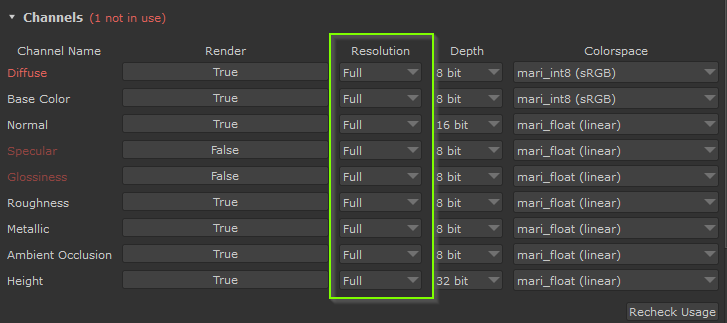
The Resolution column lets you render a channel smaller than the Final Resolution set in the "Texture Resolution" section.
•Full - 100% of the Final Resolution
• Half - 50% of the Final Resolution
•Quarter - 25% of the Final Resolution
For example, with a Final Resolution of 4096, a channel set to Half renders at 2048.
This is handy for channels that don't need the detail, like a Roughness or Ambient Occlusion map on a background asset. You save render time and memory.
The per-channel Resolution only applies to the Final Resolution render. Preview renders always render every channel at the Preview Resolution. See "Controlling Resolution" for details.
The Depth column sets the bit depth a channel is rendered in.
•8 bit - written as PNG
•16 bit - written as EXR (half float, the same way Mari stores 16 bit images)
•32 bit - written as EXR (full float)
The following defaults are set:
•Normal starts at 16 bit. This avoids the banding an 8 bit normal map shows on smooth surfaces
•Height starts at 32 bit
•Everything else starts at 8 bit
Higher bit depths mean bigger files and more memory in Mari, so only raise them where you need it.
The settings are remembered so if you load a new substance, the last used settings will be applied. If you load a substance that already is imported into Mari, its settings will be loaded
The Colorspace column sets the colorspace Mari opens the rendered texture with.
The settings are remembered so if you load a new substance, the last used settings will be applied.
If you load a substance that already is imported into Mari, its settings will be loaded
Your Render, Resolution, Depth and Colorspace choices are remembered per channel type (Base Color, Normal, Roughness etc.). They are applied again the next time you load a new Substance
So if you always want Normal at 16 bit and Diffuse switched off, you only have to set it once.
When a Substance is loaded, each channel gets its settings from the first of these that applies:
1. A Substance that already lives in your project keeps the settings it was saved with
2. Loading a different .sbsar into the palette (by browsing or drag & drop) carries over the settings of the Substance you had loaded before
3. The settings you last used for that channel type
4. T he built-in defaults: Render on, Full resolution, and the Depth and Colorspace described above